GPU Service SSH Public Keys
GPU Service SSH Public Keys let you manage the SSH public keys used to access GPU Service Instances, enabling secure, password-free access.
You assign these keys to an instance under its SSH Access configuration; see GPU Service Instances.
Browse SSH Public Keys
Navigate to the GPU Service > SSH Public Keys page to browse all registered keys.
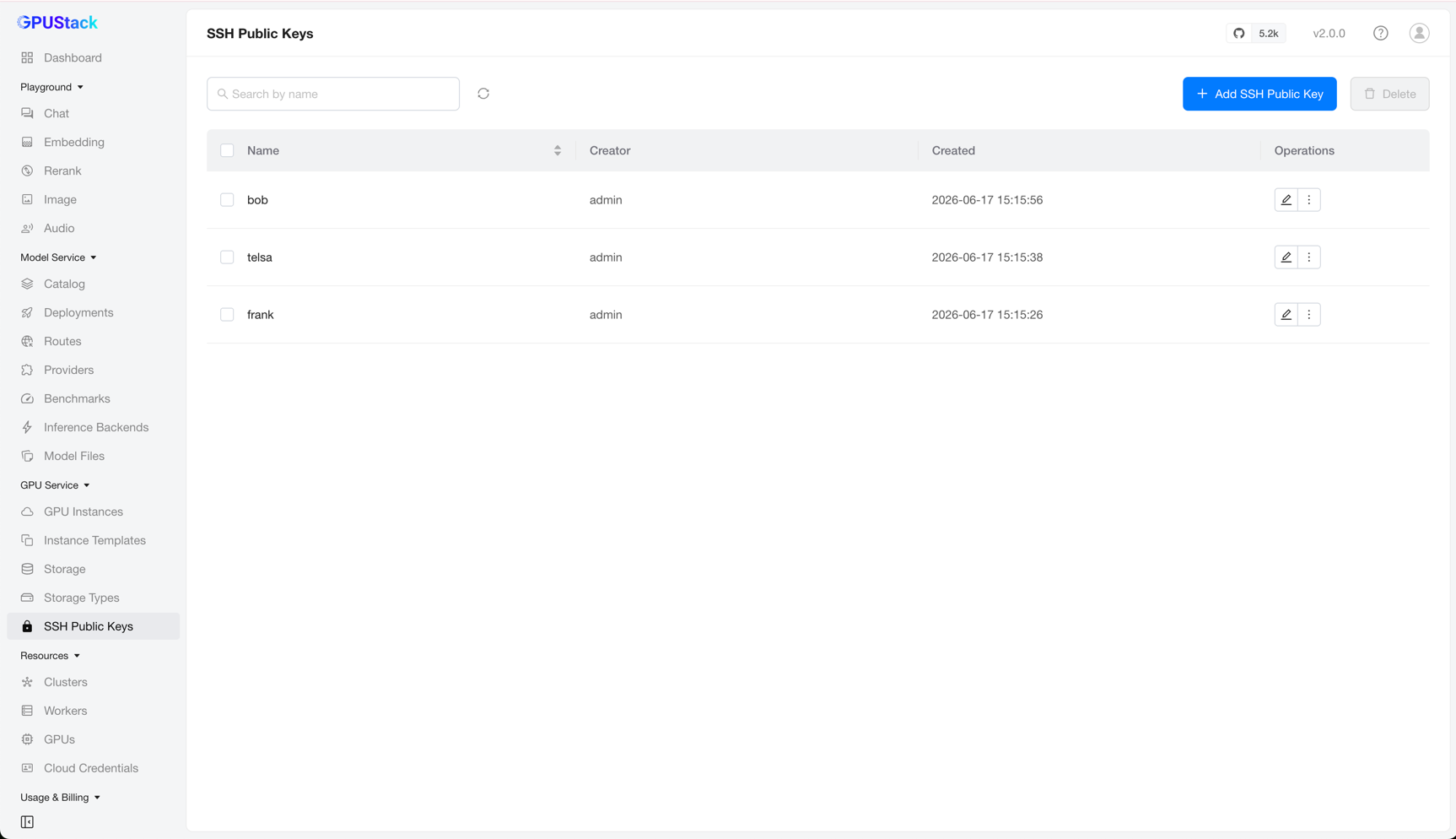
You can filter SSH public keys by name.
Adding an SSH Public Key
On the SSH Public Keys page, click Add SSH Public Key to open the creation form.
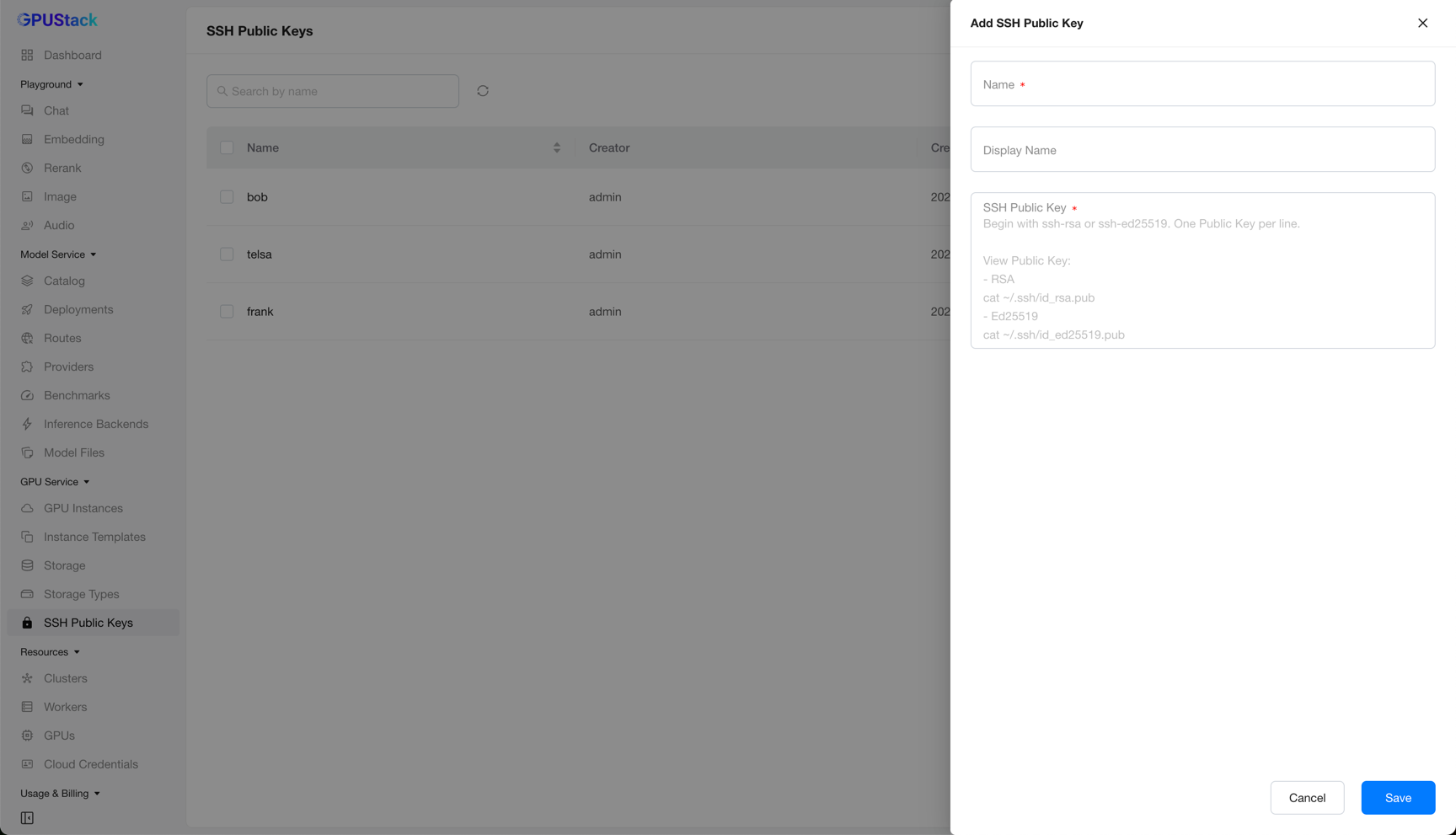
Fill in a Name, then paste your key into the SSH Public Key field. Each key must begin with ssh- and you can register several keys by entering one per line. Click Save to finish.
Tip
To print your public key, run cat ~/.ssh/id_rsa.pub (RSA) or cat ~/.ssh/id_ed25519.pub (Ed25519).
Editing an SSH Public Key
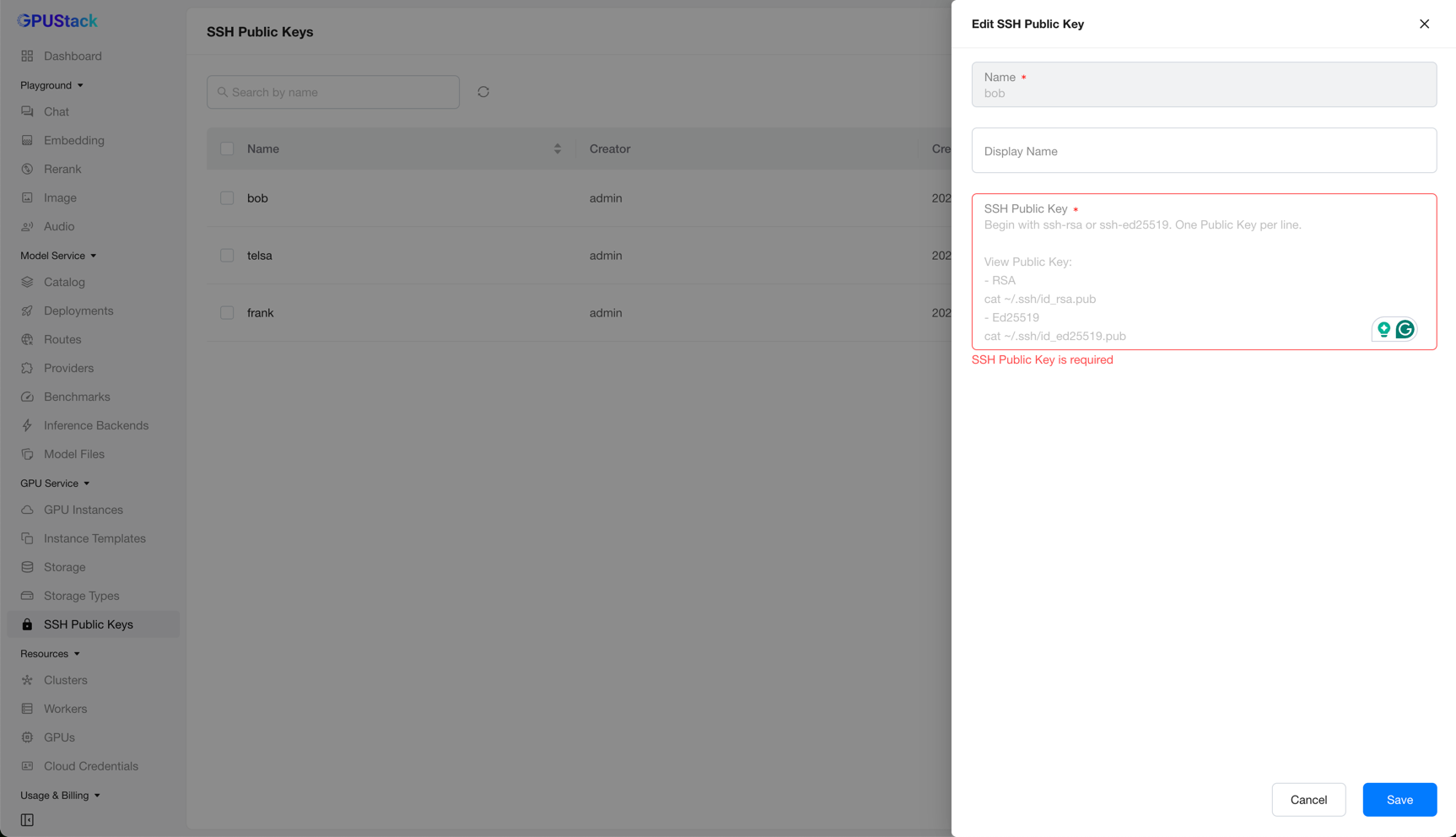
Click Edit on a key to open its configuration, update the settings, and click Save.
Deleting an SSH Public Key
Click Delete on a key and confirm. The key is then removed from the list.
Note
If the SSH public key is already in use by a GPU Service Instance, deleting it here does not remove it from that instance. Its content has already been synced to the worker-side cluster, and a single entry cannot be stripped from there retroactively. To revoke the key from a running instance, open that instance, click Edit, and deselect the key under its SSH Access configuration.