Integrate with NewAPI
NewAPI can integrate with GPUStack to aggregate locally deployed LLMs, embeddings, reranking, Speech-to-Text, and Text-to-Speech capabilities into a unified OpenAI-compatible API gateway for enterprise employees.
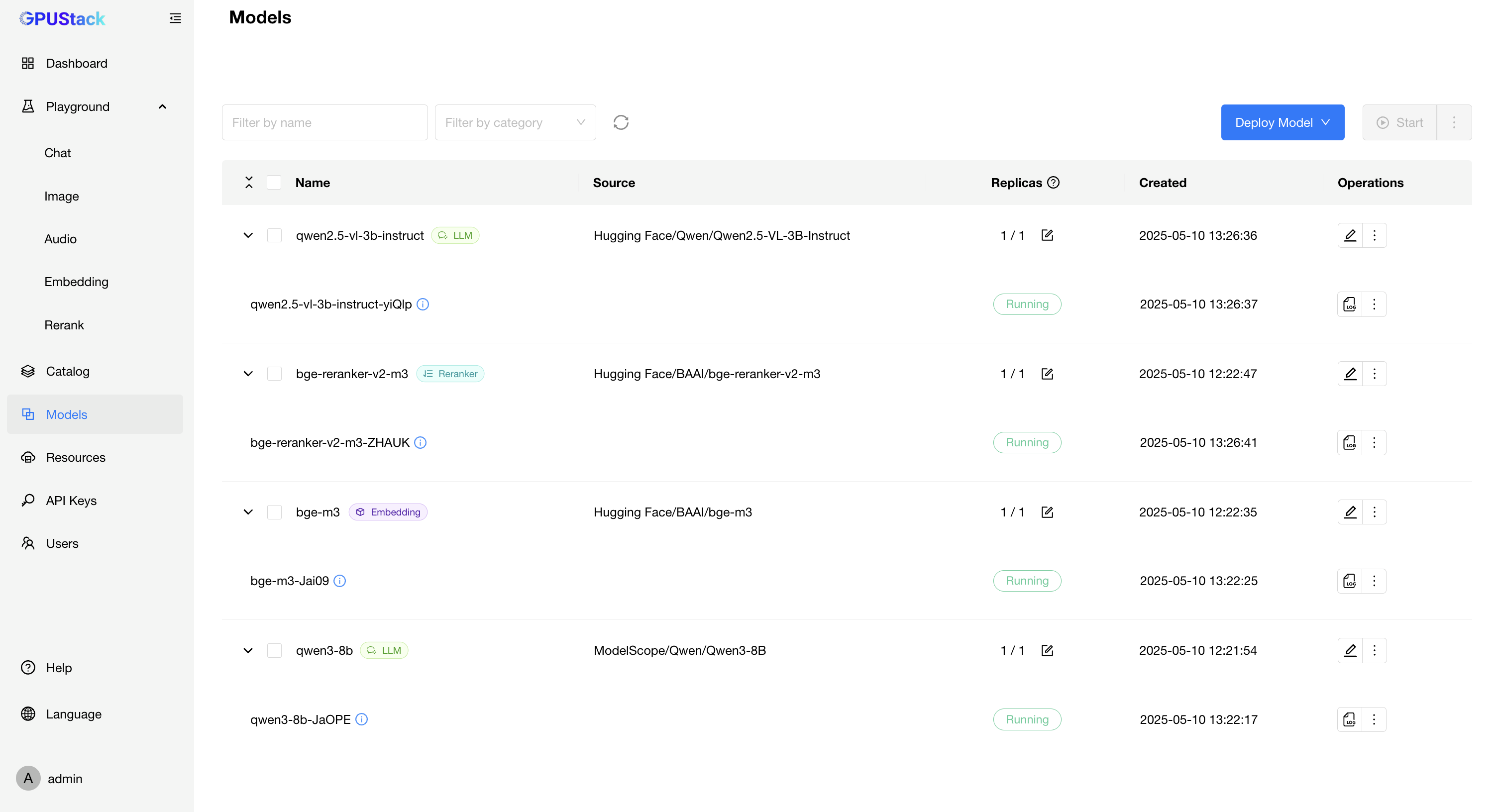
Deploying Models in GPUStack
- In GPUStack UI, navigate to the
Deploymentspage and click onDeploy Modelto deploy the models you need. Here are some example models:
- qwen3-8b
- qwen2.5-vl-3b-instruct
- bge-m3
- bge-reranker-v2-m3
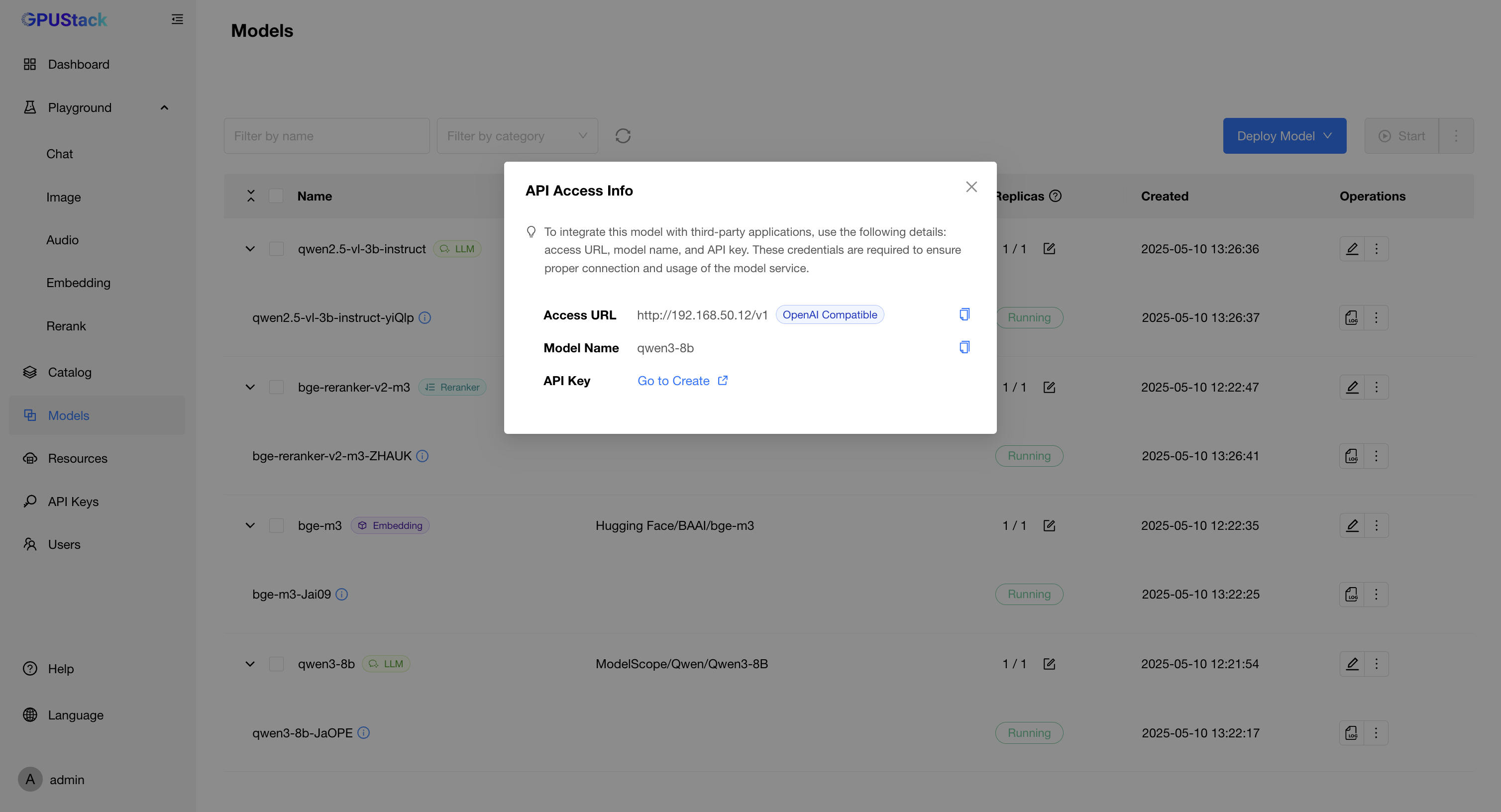
- In the model’s Operations, open
API Access Infoto see how to integrate with this model.
Create an API Key in GPUStack
-
Navigate to the
Access Control>API Keyspage in GPUStack, then click onNew API Key. -
Fill in the name, then click
Save. -
Copy the API key and save it for later use.
Integrating GPUStack into NewAPI
-
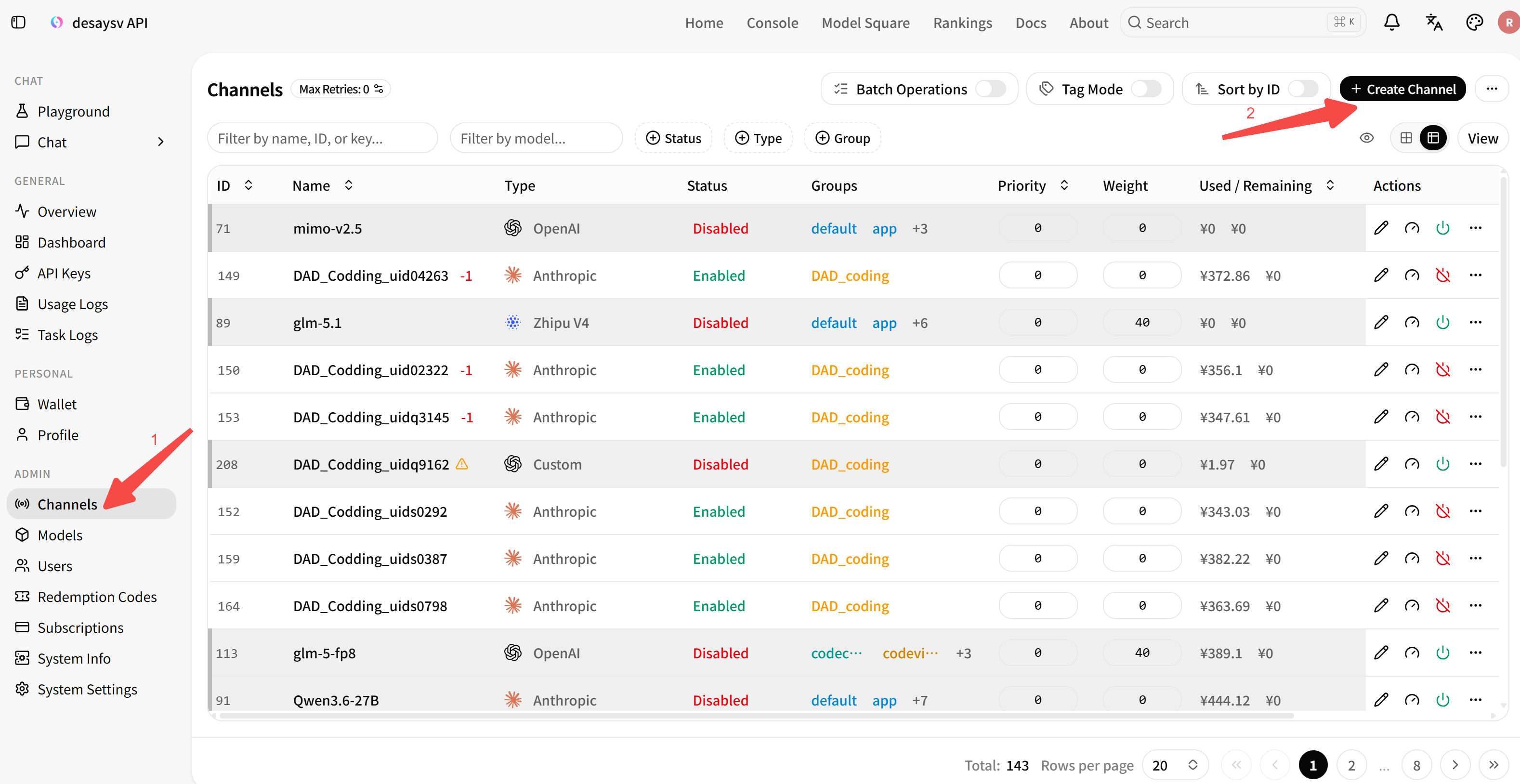
Access the NewAPI Management Console, navigate to
Channelson the left sidebar, and clickAdd Channel -
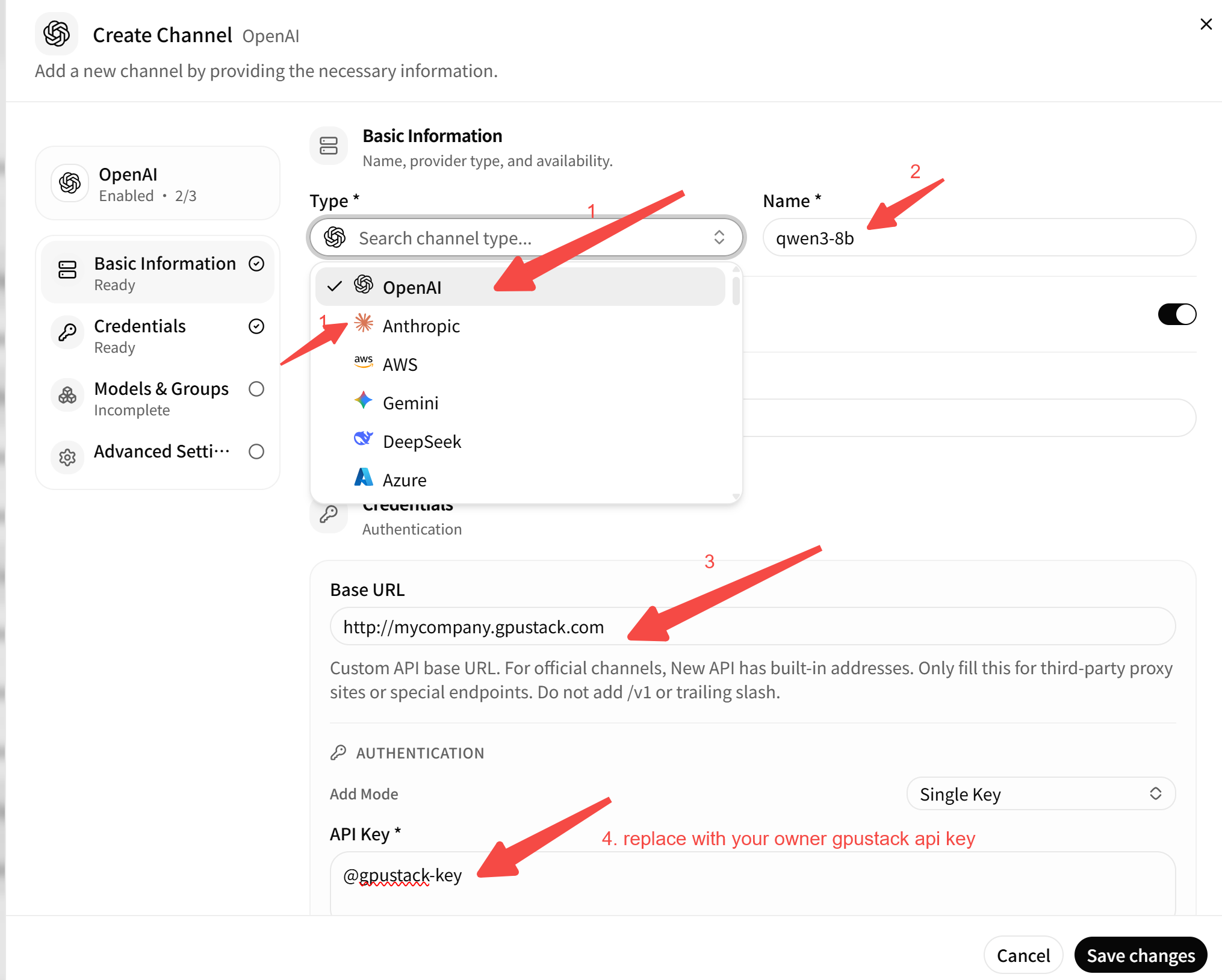
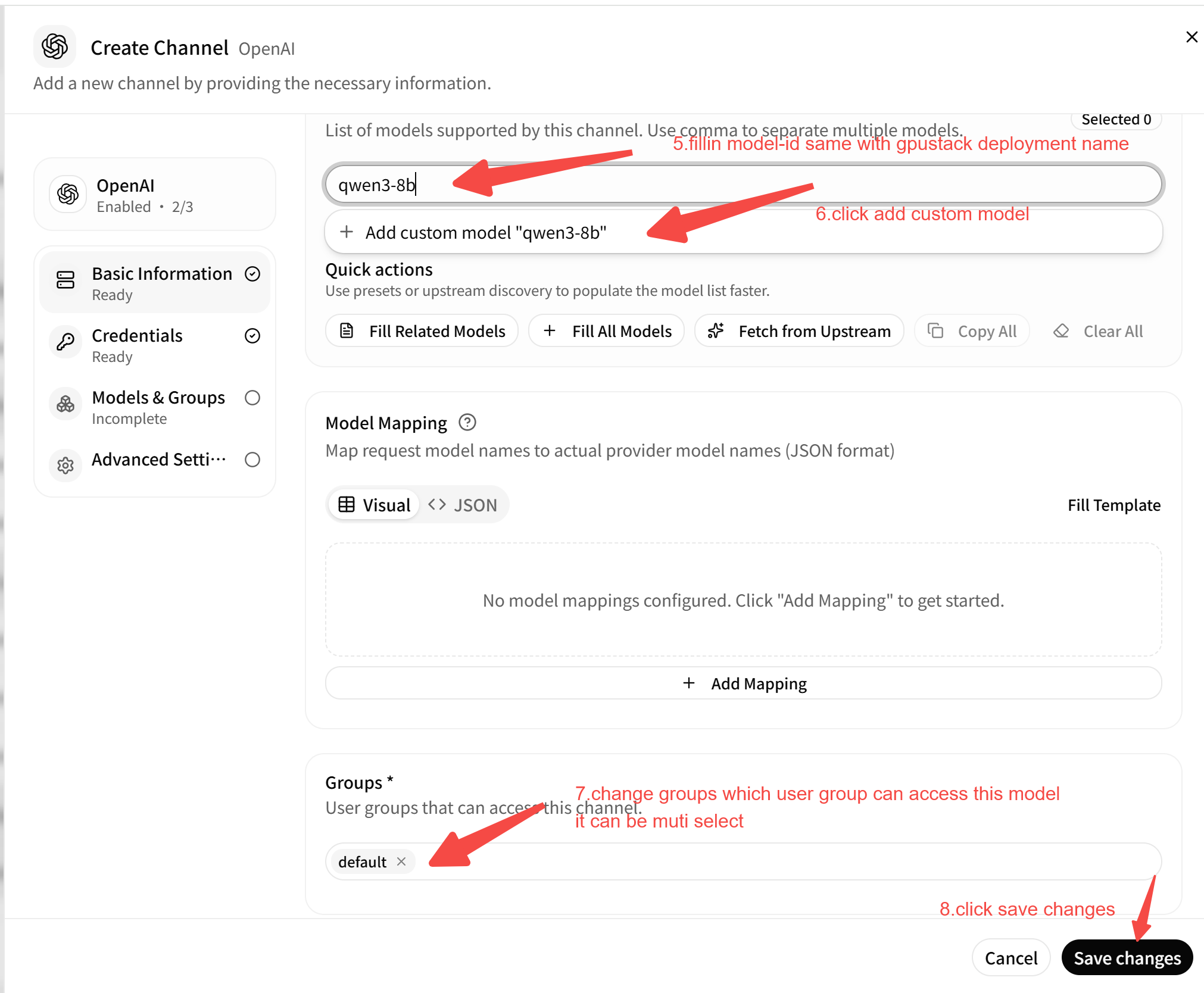
Configure the channel parameters as follows:
-
Type: Select
OpenAIorCustom(GPUStack provides standard OpenAI-compatible and anthropic endpoints). -
Name: Input a Channels name,often same with model-id e.g.,
qwen3-8b. -
Base URL (Base URL):
http://your-gpustack-url, the URL should point to GPUStack's access url or domain name both with OpenAI-compatible or anthropic(remove v1 because newapi will add it auto). Do not uselocalhostif NewAPI is running in a Docker container, as it refers to the container’s internal network. also can use https if gpustack server start with tls -
Key (密钥): Input the GPUStack API Key you copied in the previous step.
-
Models (模型): Enter or select the exact model names deployed in GPUStack (e.g.,
qwen3-8b,bge-m3,bge-reranker-v2-m3). Ensure the model names match GPUStack's deployment names.
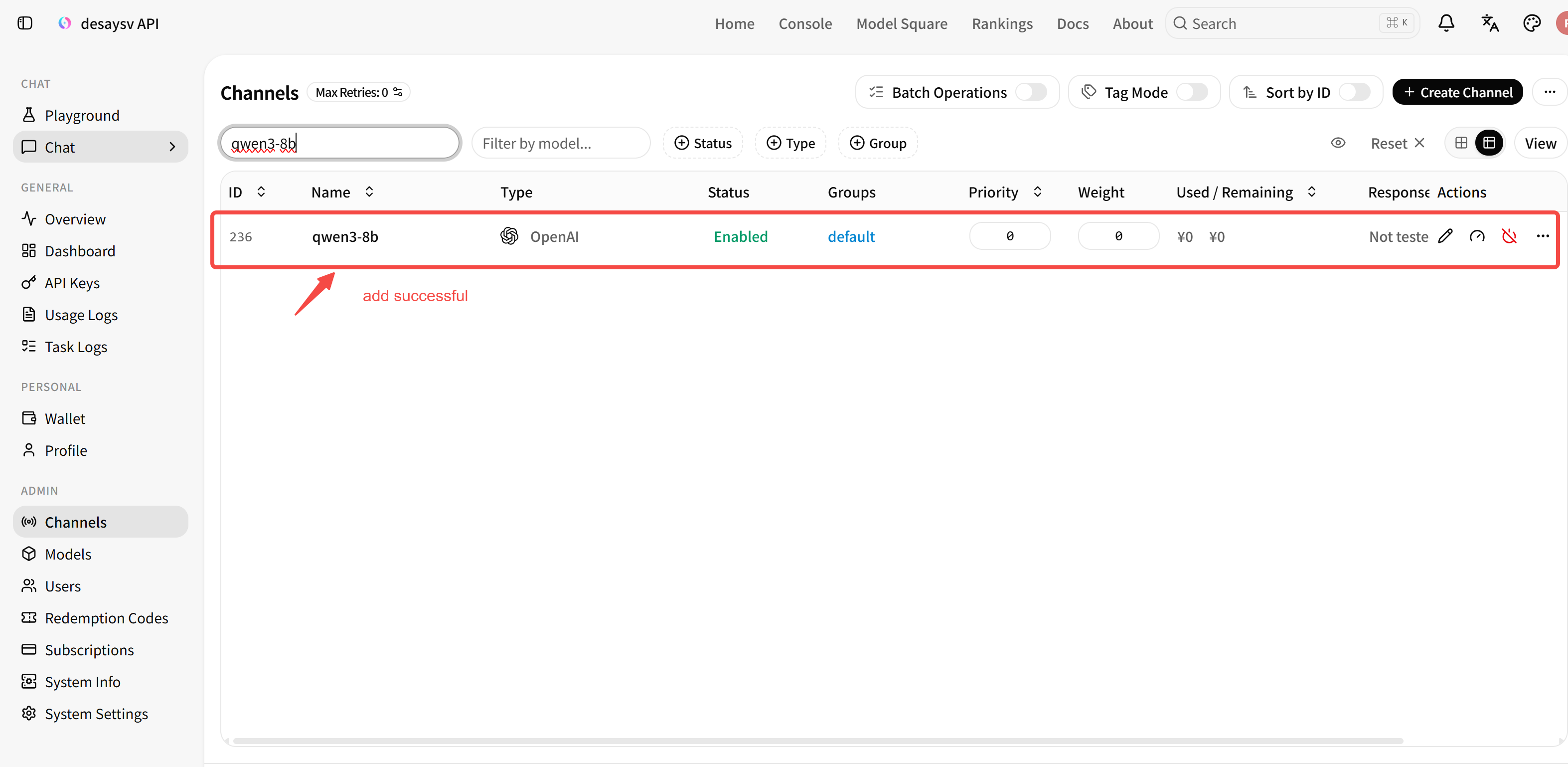
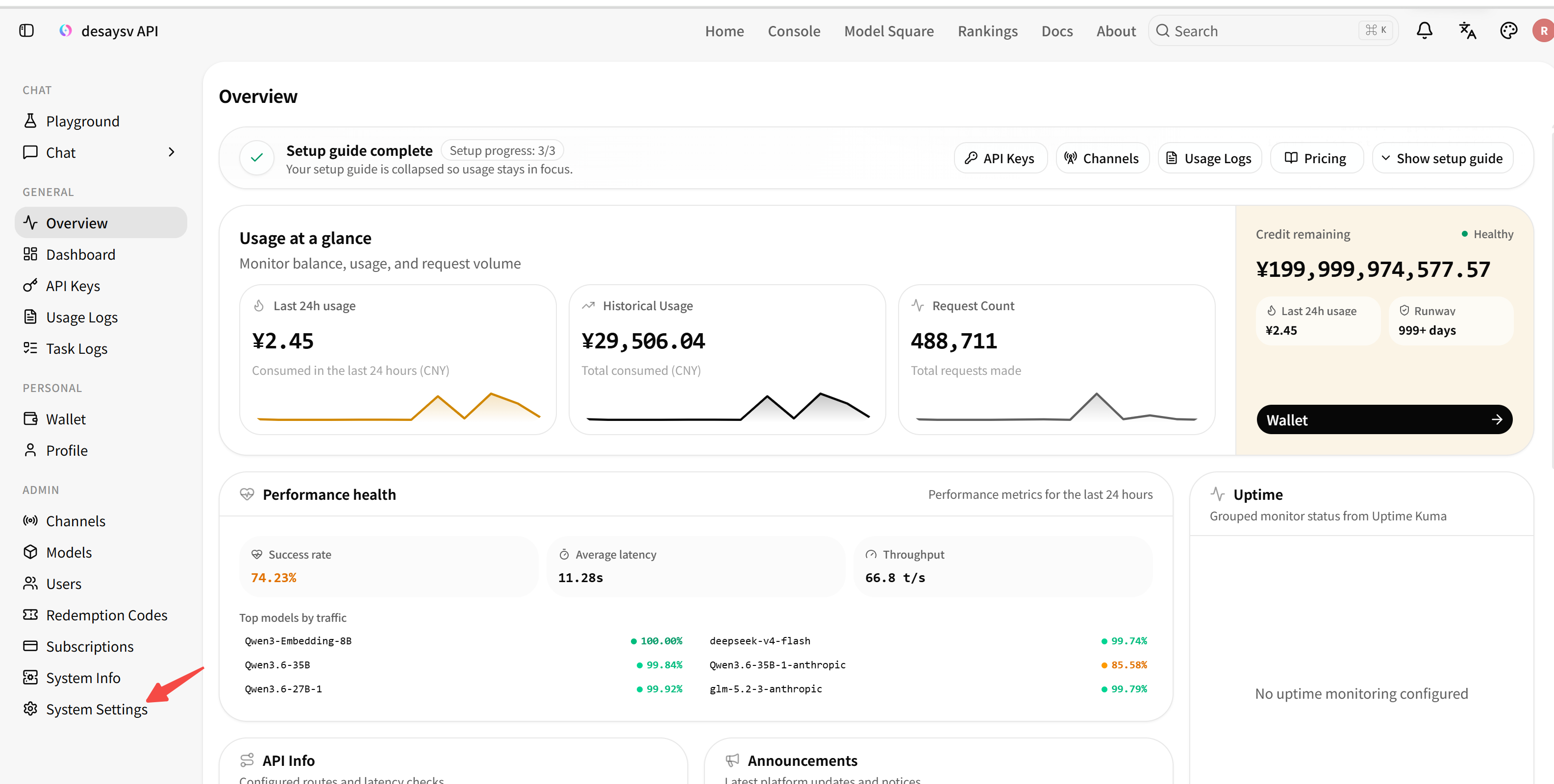
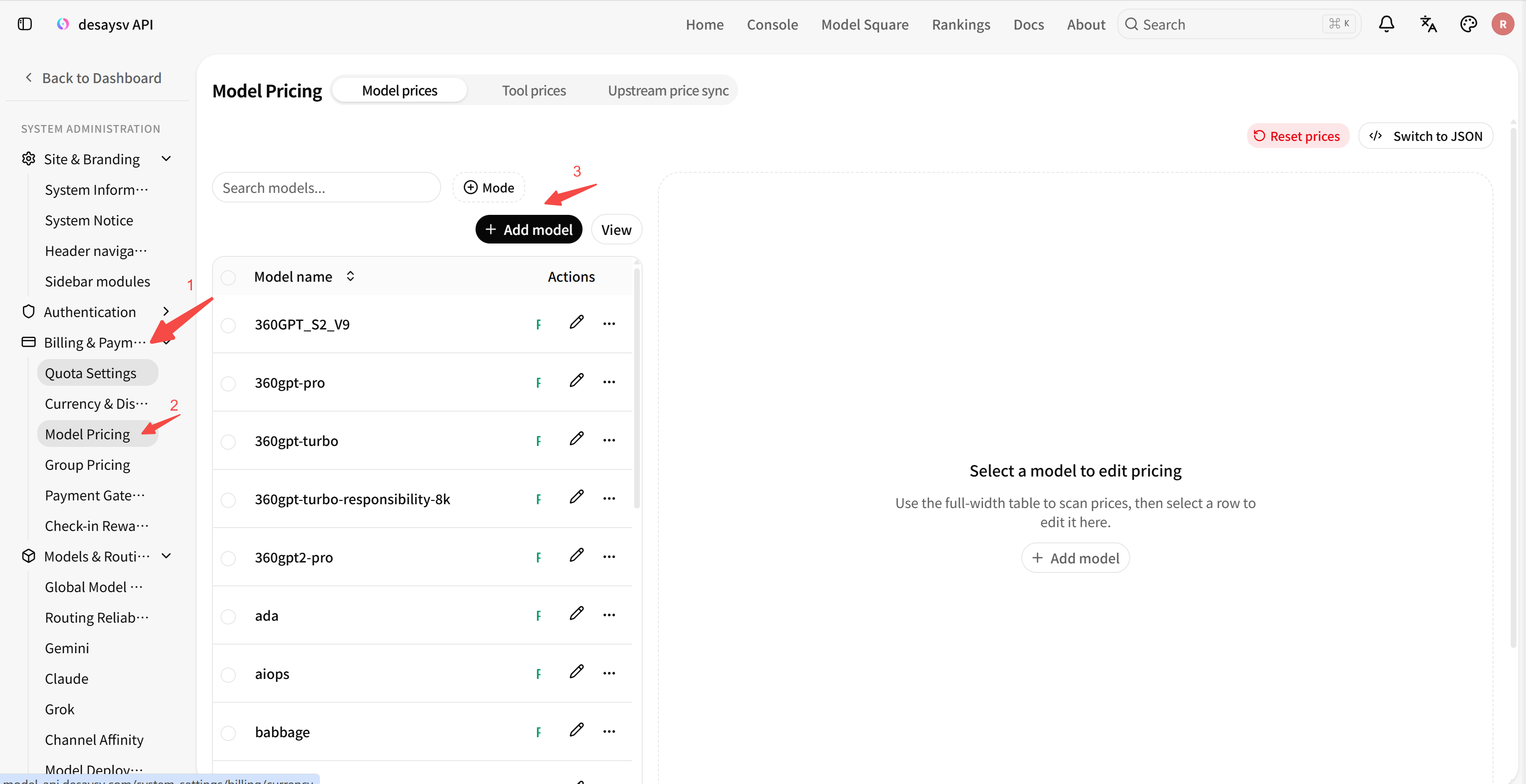
- Configure model pricing.
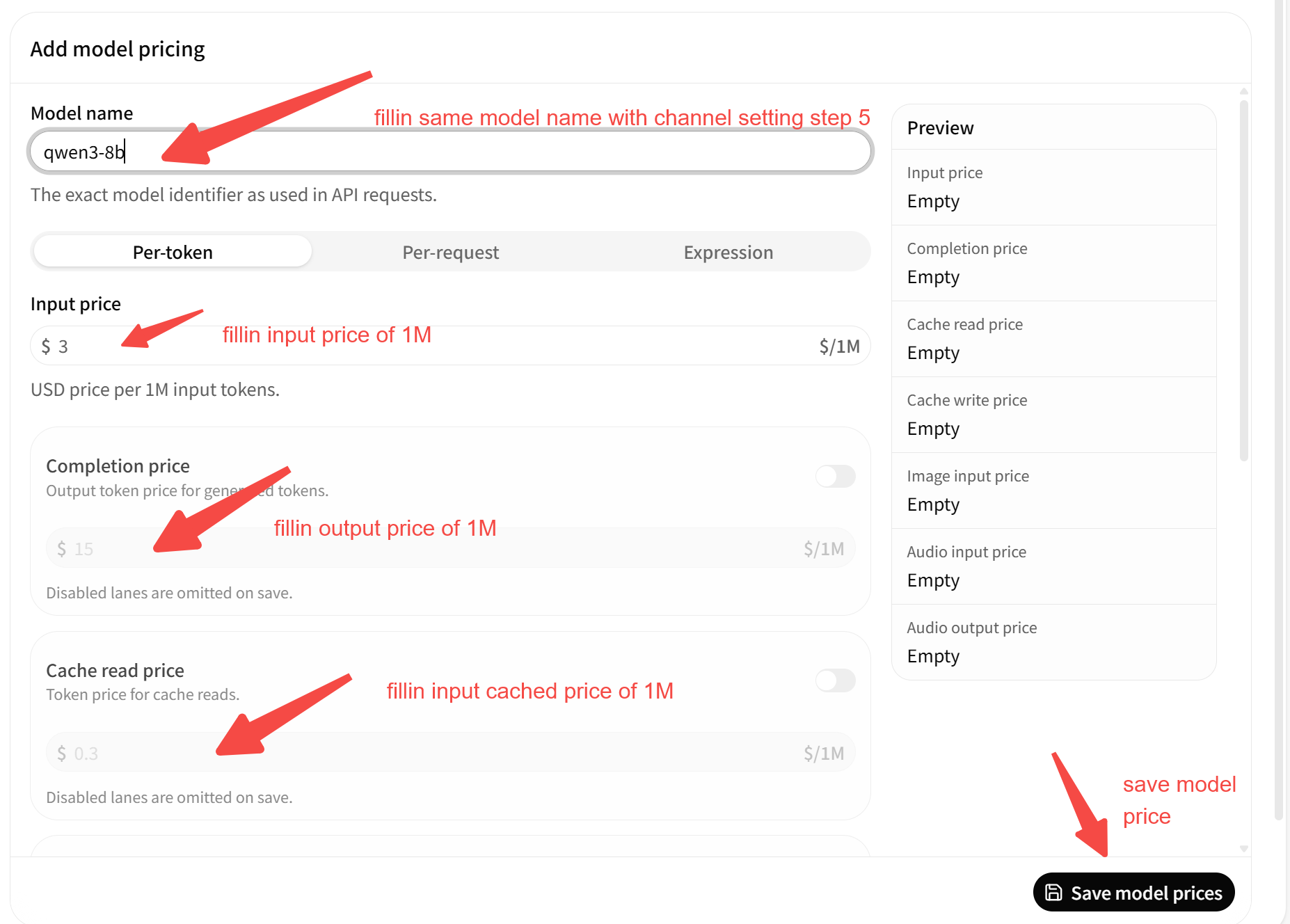
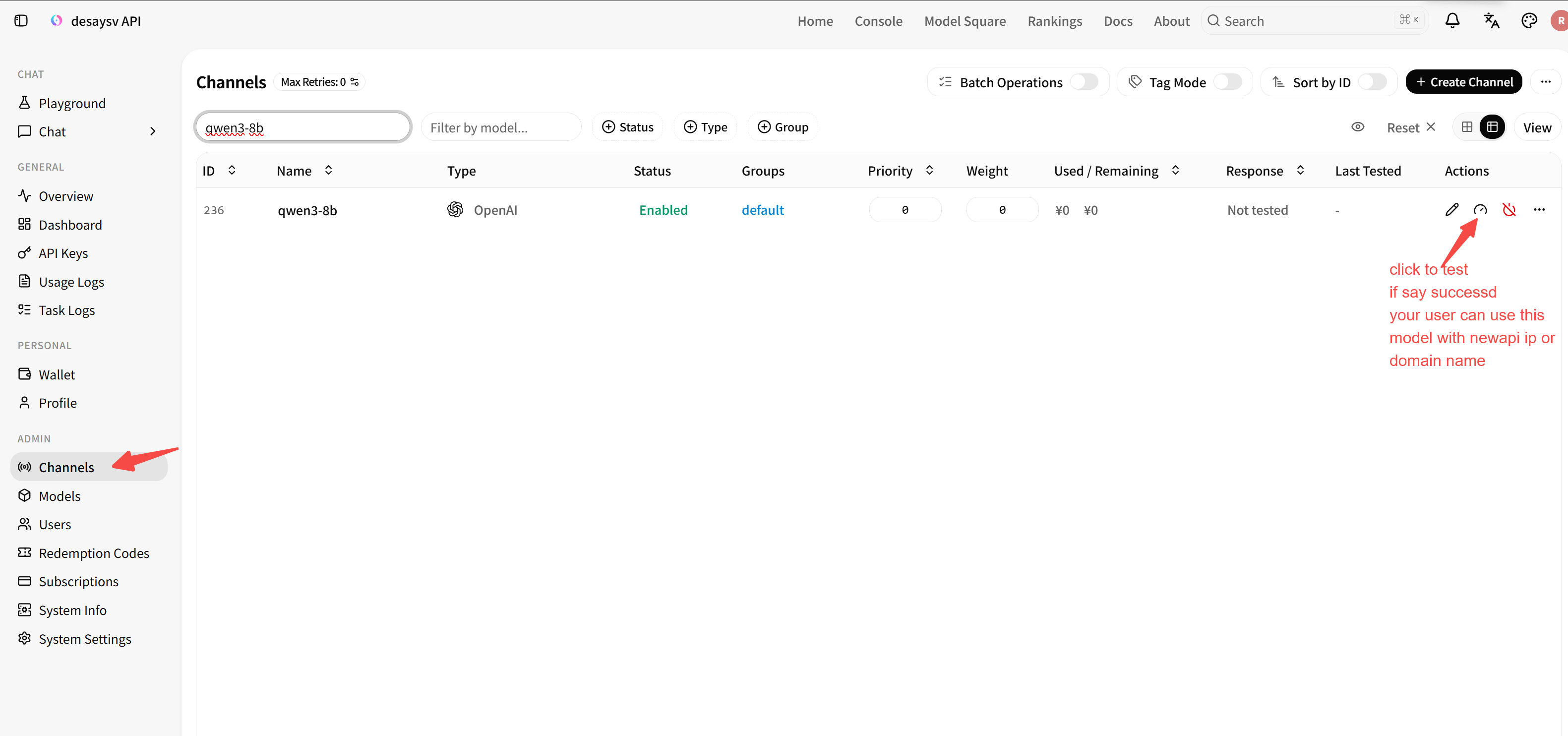
- You can click
Teston the channel list to verify the connection between NewAPI and GPUStack.
Verifying and Using the Integrated Models in NewAPI
- Go to the
api keyspage in NewAPI, clickcreate api key
- note: api key must select group same with channels config group , or you can not access the model
-
Copy the newly generated NewAPI key (starts with
sk-). -
You can now access all GPUStack-backed models via NewAPI's unified endpoint:
- Unified Base URL:
http://your-newapi-url/v1 - Unified API Key:
sk-xxxxxx(Your NewAPI key)
Example request using curl: