GPU Service Storage Types
GPU Service Storage Types let you define shared file-system storage backends — NFS or S3 — for GPU Service Instances.
This helps administrators manage storage definitions across multiple Kubernetes clusters. Once defined, a storage type can be selected when creating GPU Service Storage.
Under the hood, each storage type is realized as a Kubernetes StorageClass on the target cluster.
Browse Storage Types
Navigate to the GPU Service > Storage Types page to browse all storage types and their details.
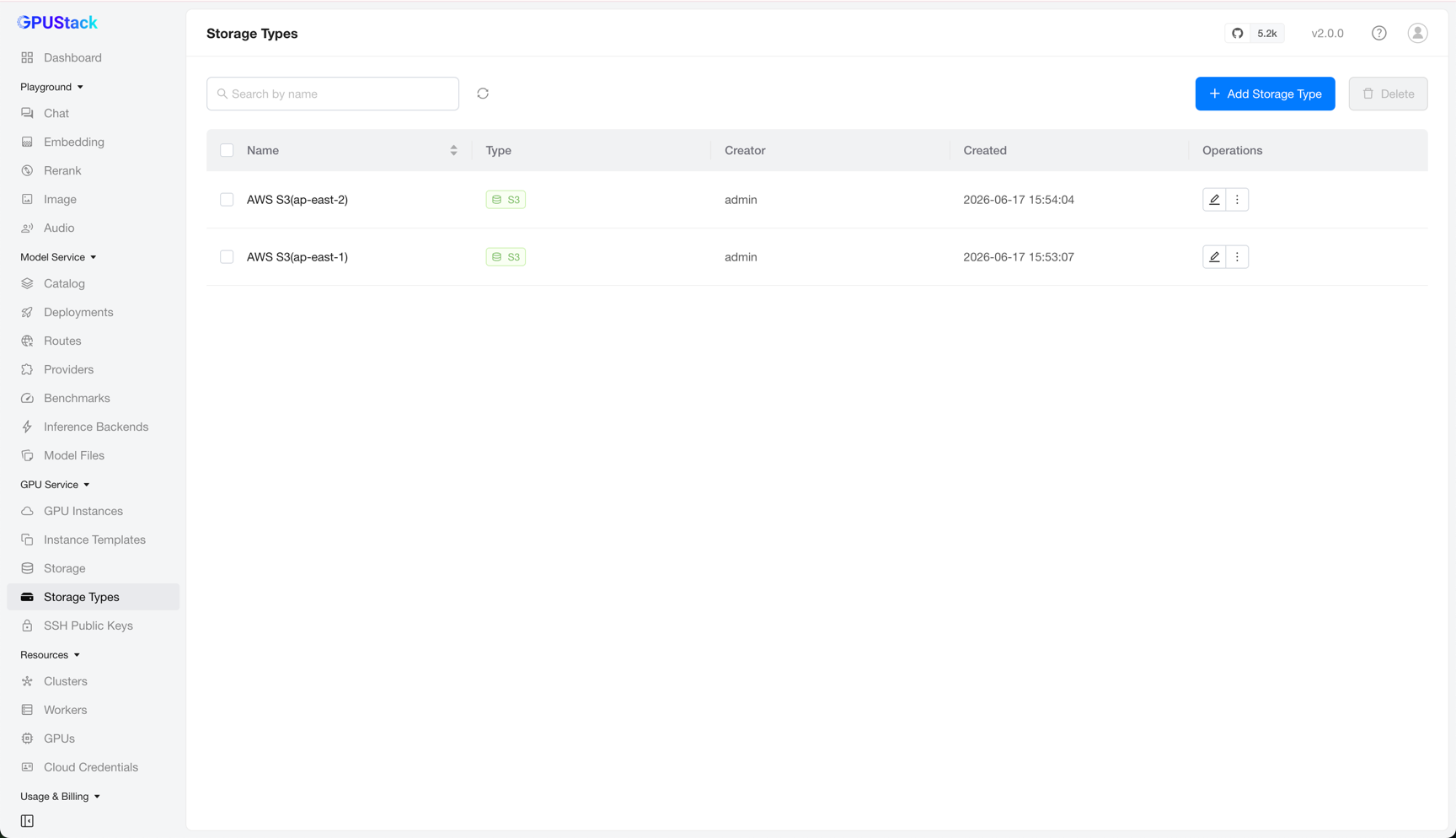
You can filter storage types by name.
Adding a Storage Type
On the Storage Types page, click Add Storage Type to open the creation form.
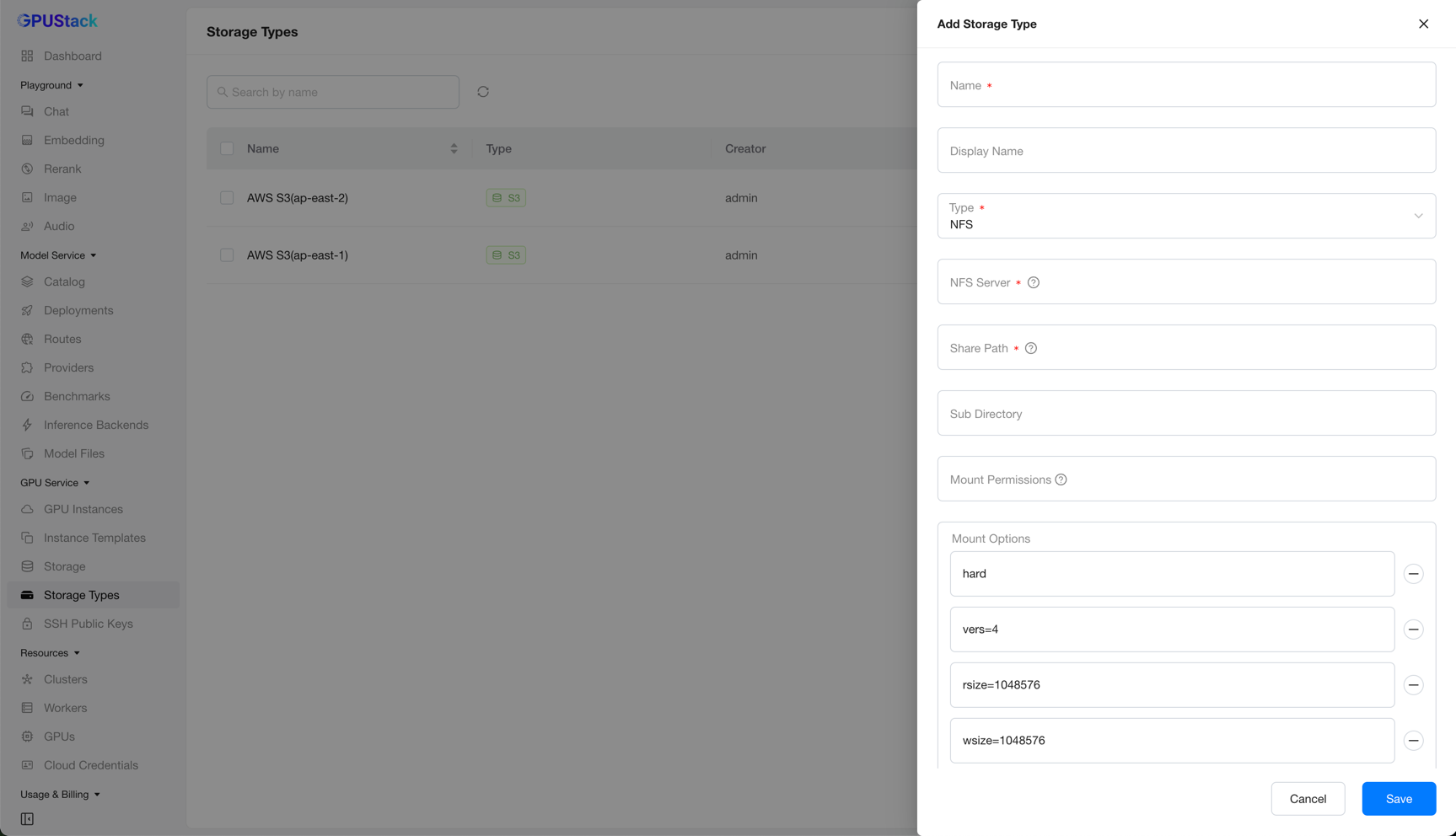
Fill in a Name, optionally a Display Name, then choose a Type. The remaining fields depend on the type you select.
NFS — mount an exported share from an NFS server:
- NFS Server (required): The hostname or IP address of the NFS server.
- Share Path (required): The exported share path on the NFS server.
- Sub Directory: A sub-directory within the share to use for the volume. If left empty, the root of the share is used.
- Mount Permissions: Permissions applied to the mounted directory, such as
0777. Defaults to0, which respects the permissions configured on the NFS server. - Mount Options: NFS mount options, added as individual entries. Defaults to
hard,vers=4,rsize=1048576,wsize=1048576,noatime, andnodiratime.
S3 — mount an S3-compatible object storage bucket:
- Endpoint (required): The S3-compatible storage endpoint URL.
- Region: The region of the S3 storage, if applicable.
- Bucket: The bucket name to use. If left empty, a default bucket named
gpu-instance-pv-{id}is created. - Access Key (required): The access key used to authenticate with the storage.
- Secret Key (required): The secret key used to authenticate with the storage. It is write-only and is never returned in API responses.
- Insecure: Skip TLS/SSL certificate verification when connecting to the endpoint. Disabled by default.
- Mount Options: Mount options for the underlying GeeseFS driver, added as individual entries. The default values follow the Intensive writing for large files preset, which suits most workloads.
S3 volumes are mounted with GeeseFS, and the Mount Options are passed to it directly. Pick the preset that matches your access pattern, and append the Non-Yandex S3-compatible service options when your endpoint is not Yandex Object Storage.
Common GeeseFS Mount Options presets
| Use case | Mount options |
|---|---|
| Intensive writing for large files (default) | --no-checksum --memory-limit=4000 --max-flushers=32 --max-parallel-parts=32 --part-sizes=25 |
| Sequential reading for large files | --read-ahead-large=200000 --large-read-cutoff=10240 --read-ahead-parallel=40000 --memory-limit=8000 |
| Random reading for small files | --read-ahead-small=64 --small-read-cutoff=64 --read-ahead=1024 --stat-cache-ttl=300s --entry-limit=200000 |
| High availability for writing | --sdk-max-retries=10 --read-retry-attempts=5 --fsync-on-close --cache=/mnt/disk-cache |
| Non-Yandex S3-compatible service | --list-type=2 --no-specials |
After filling in the required fields, click Save to create the storage type.
Editing a Storage Type
After creation, only the display name can be changed.
Note
Editing more of the storage type configuration is planned for a future release.
Deleting a Storage Type
Click Delete on a storage type and confirm. The storage type is then removed from the list.
Warning
Before deleting a storage type, first delete any GPU Service Storage created from it.