Integrate with MaxKB
MaxKB can integrate with GPUStack to leverage locally deployed LLMs, embedding models, and reranking models for building knowledge-based AI assistants.
Deploying Models
- In GPUStack UI, navigate to the
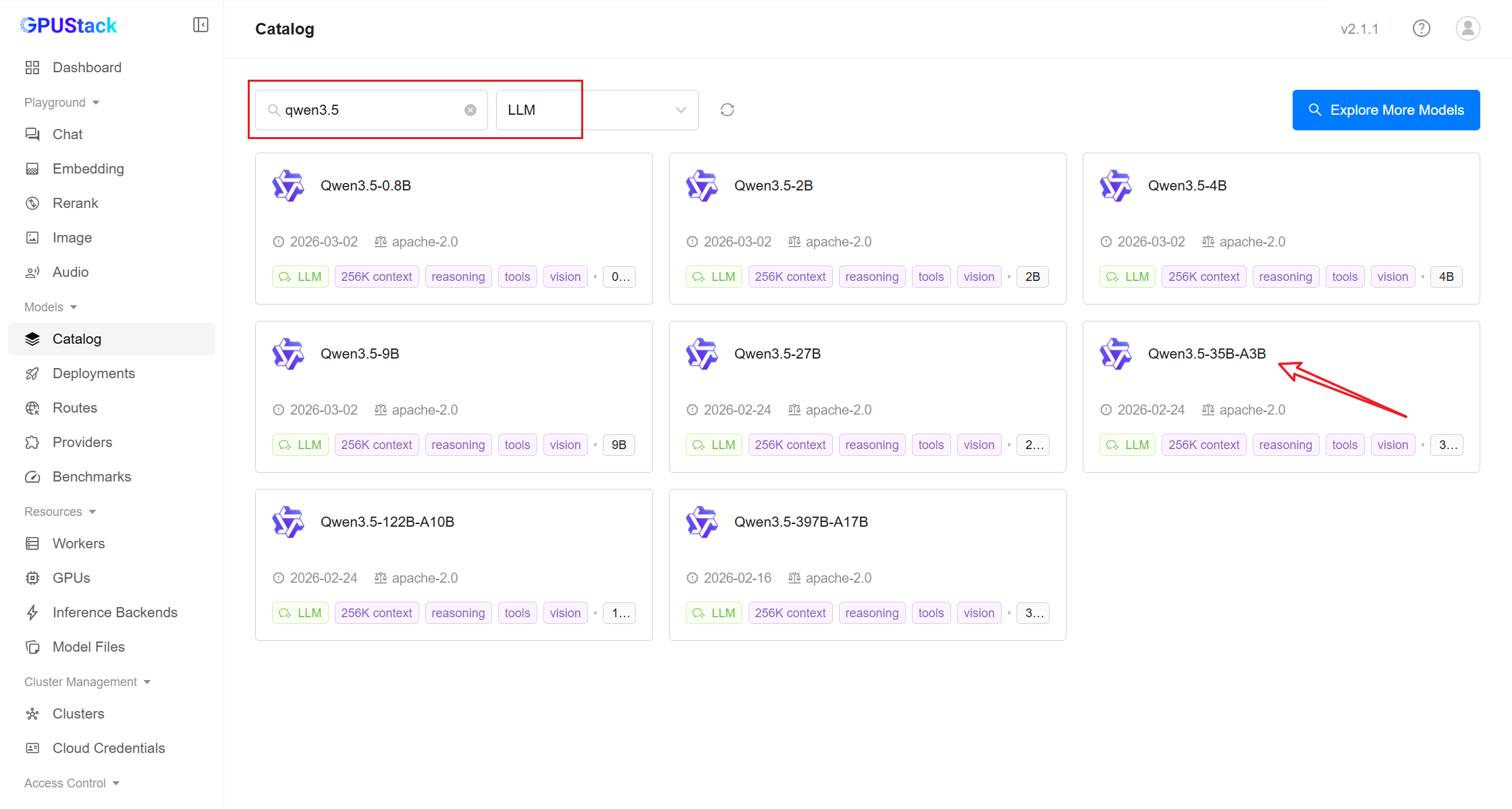
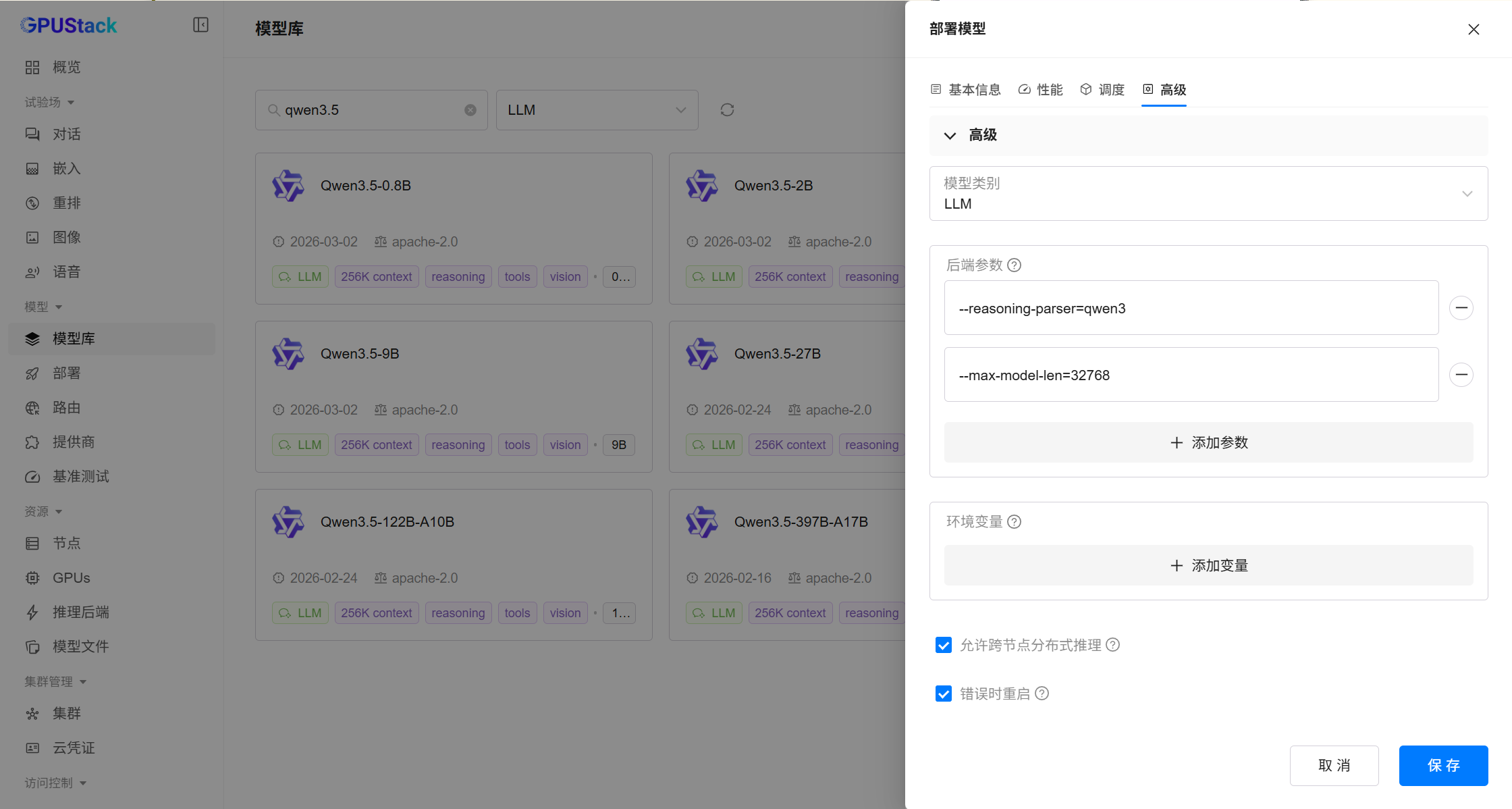
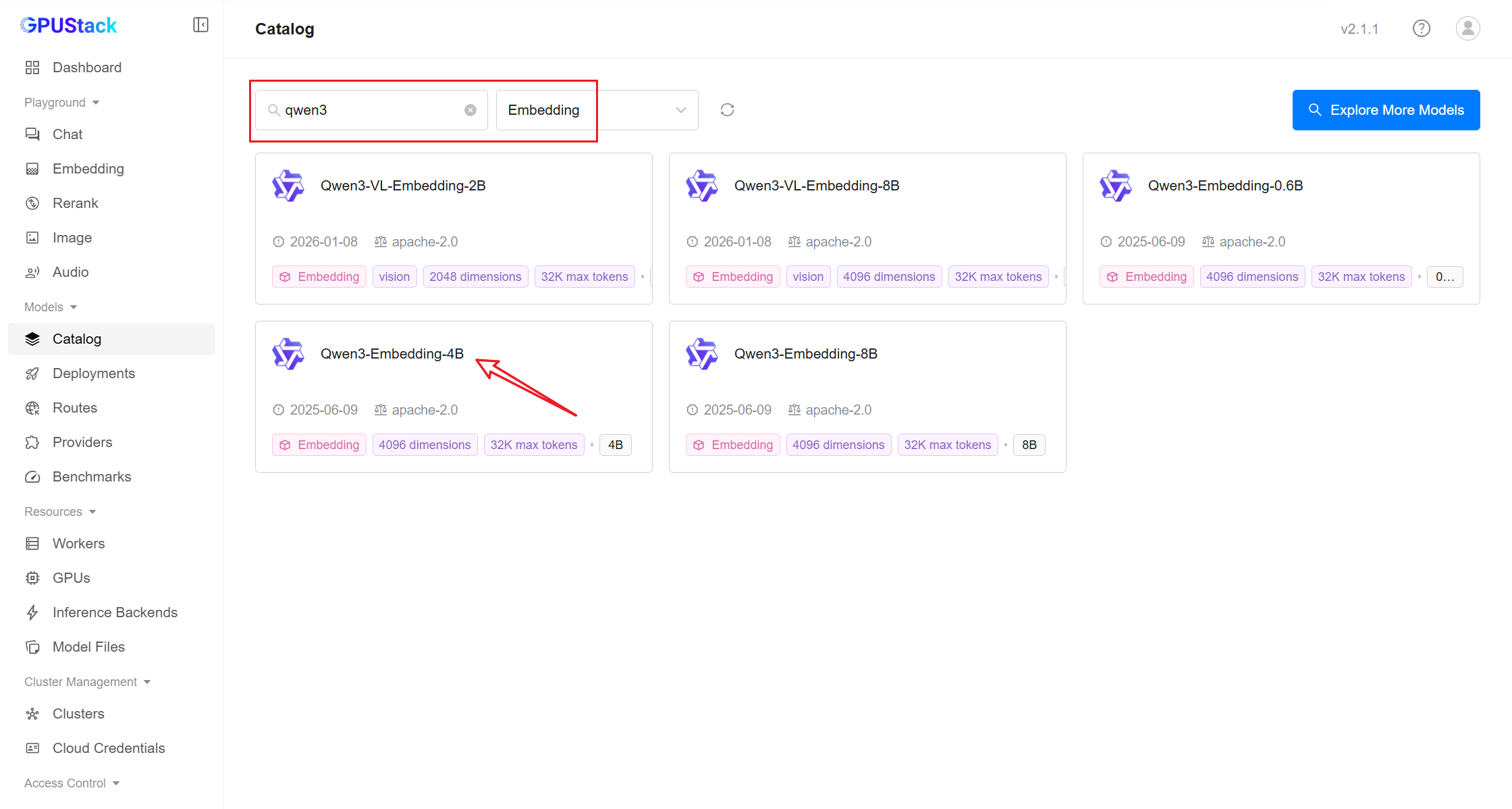
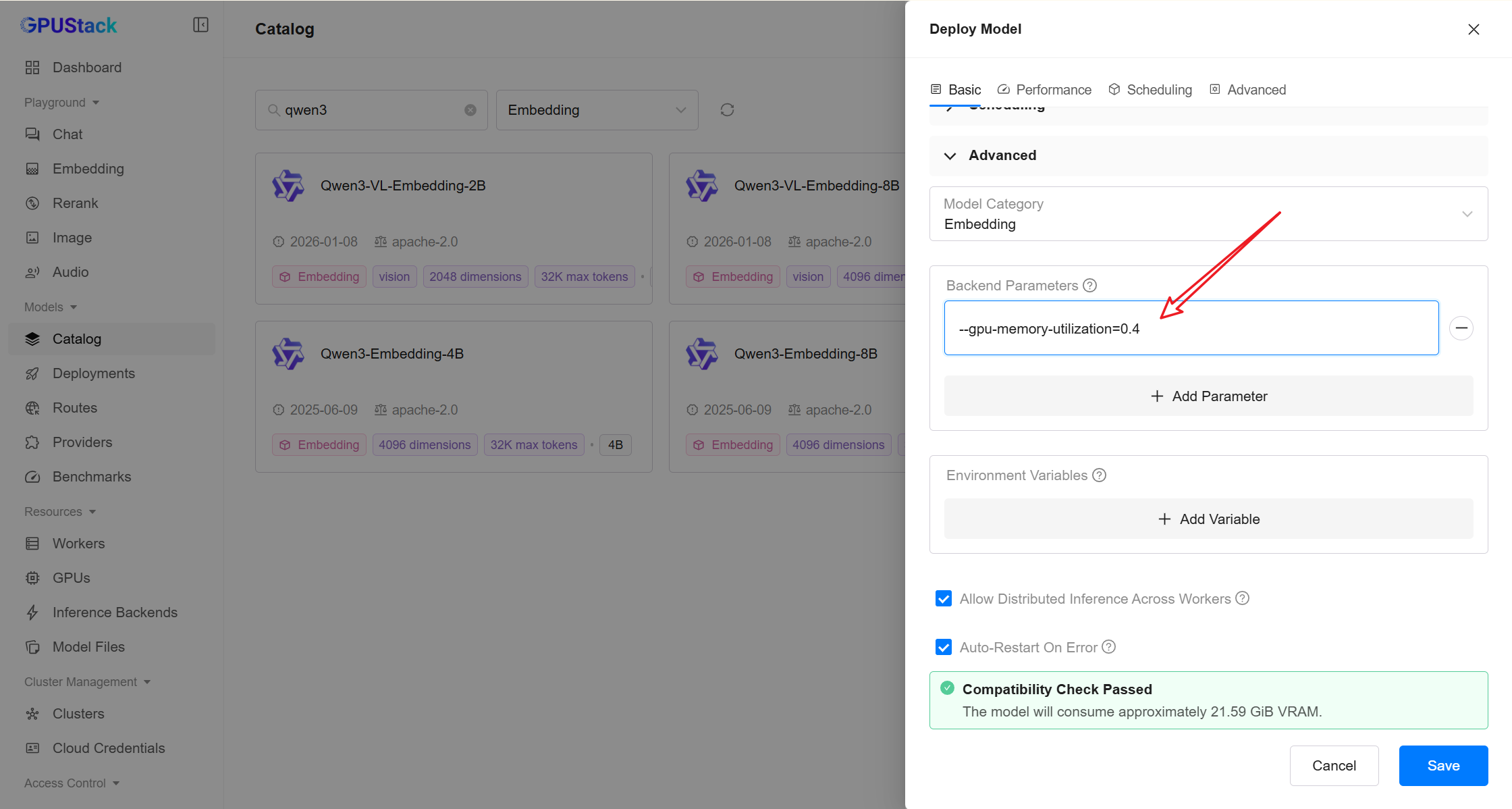
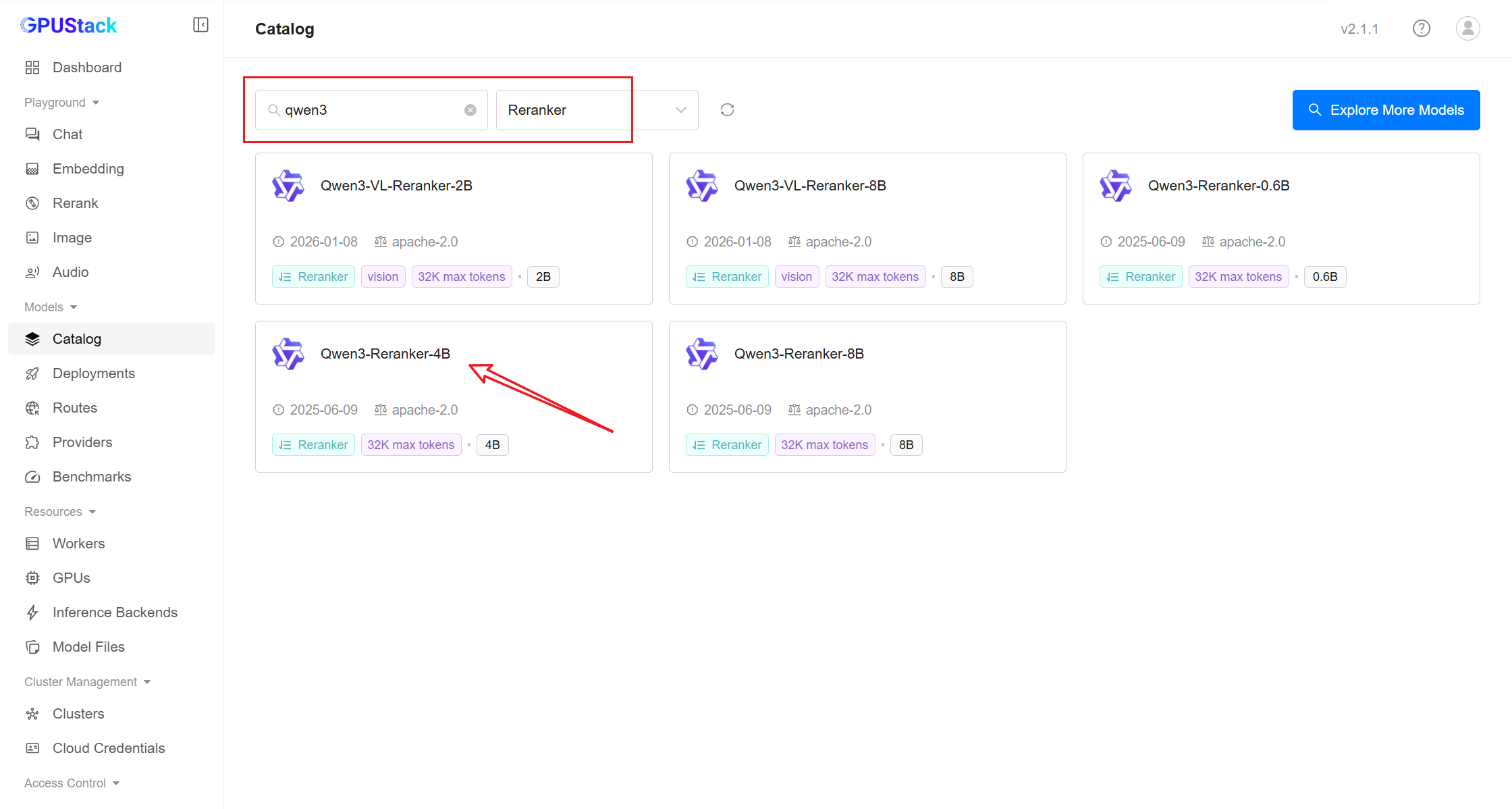
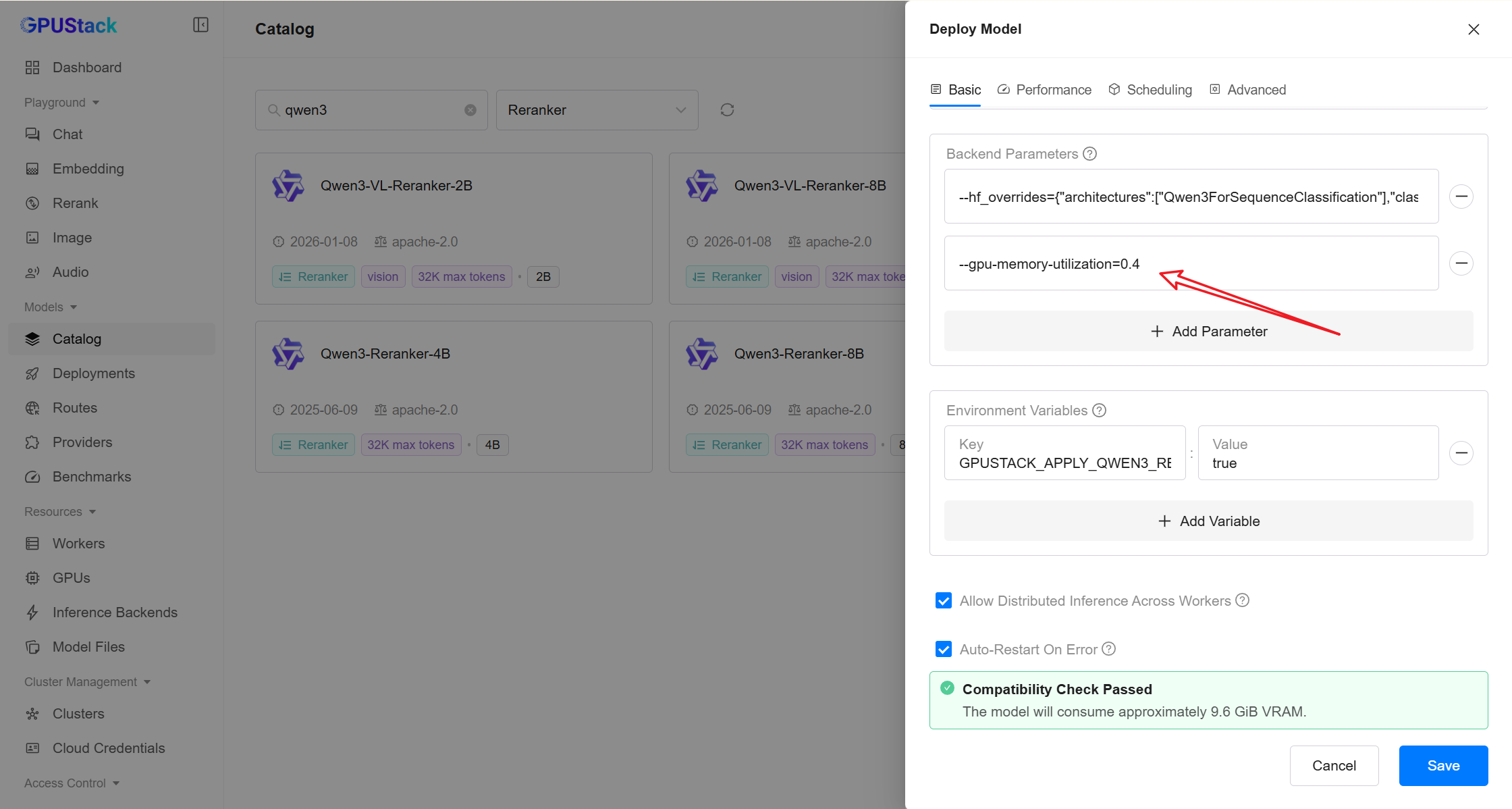
Deploymentspage and click onDeploy Modelto deploy the models you need. Here are some example models:
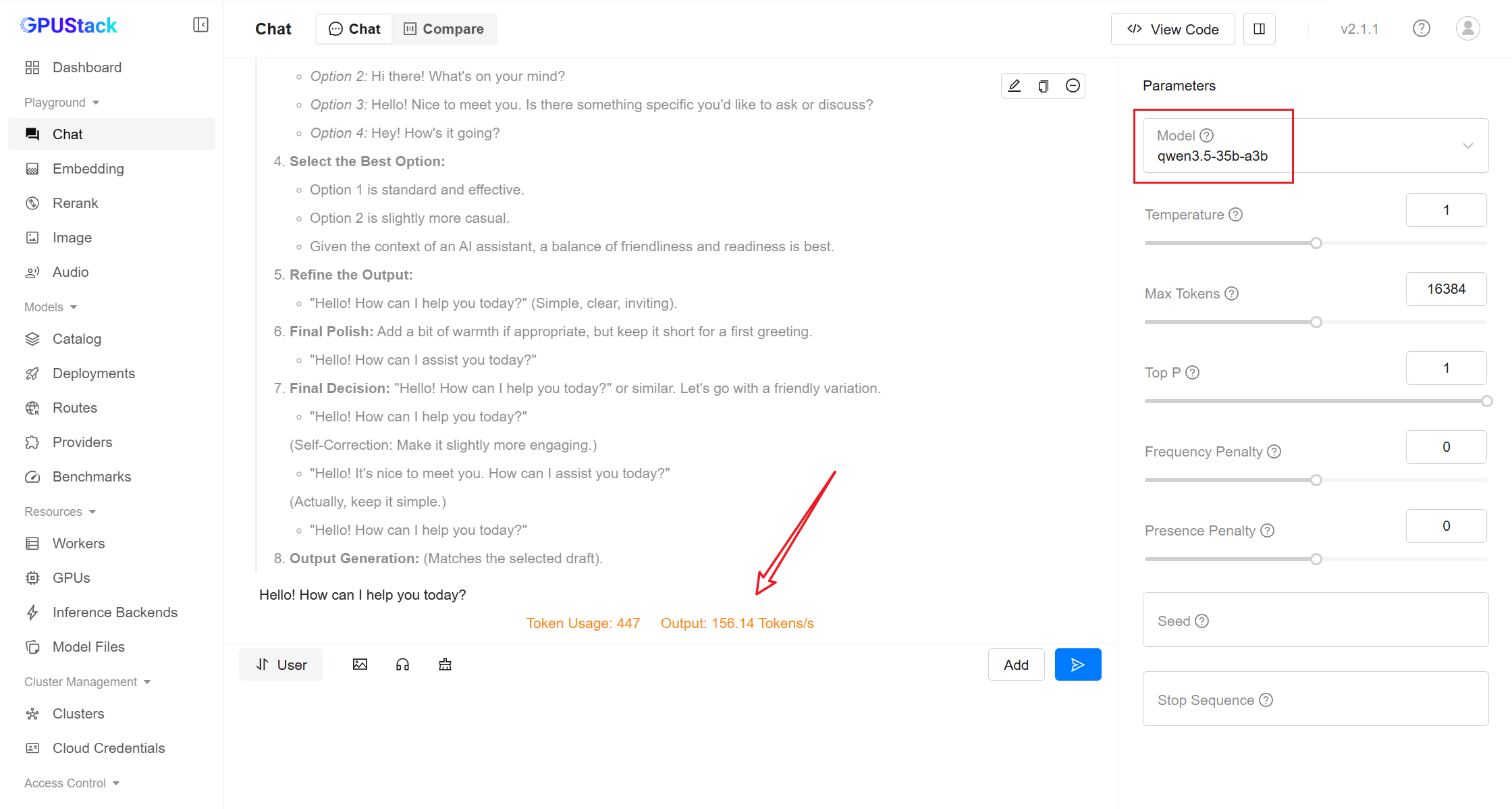
qwen3.5-35b-a3b
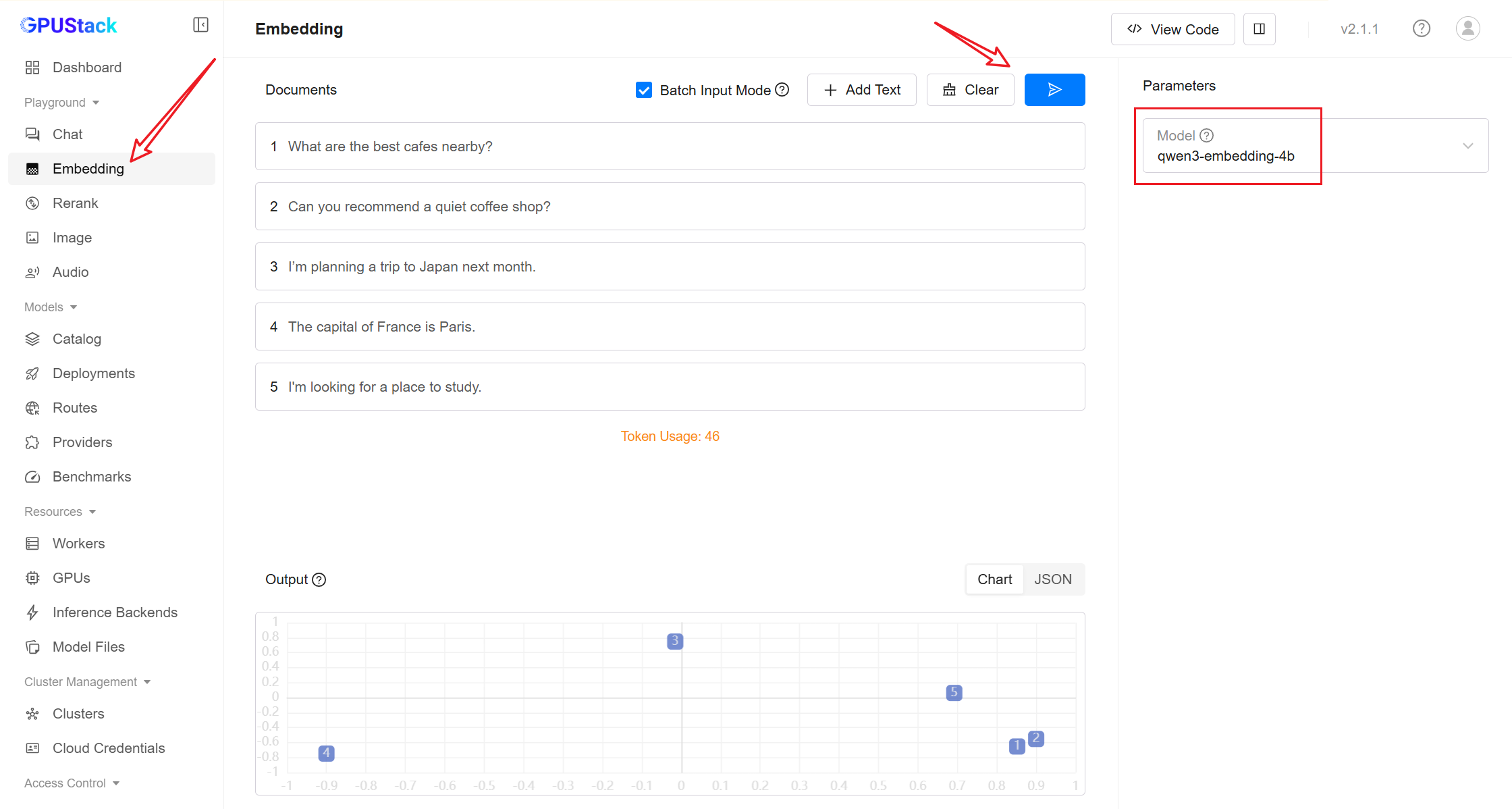
qwen3-embedding-4b
qwen3-reranker-4b
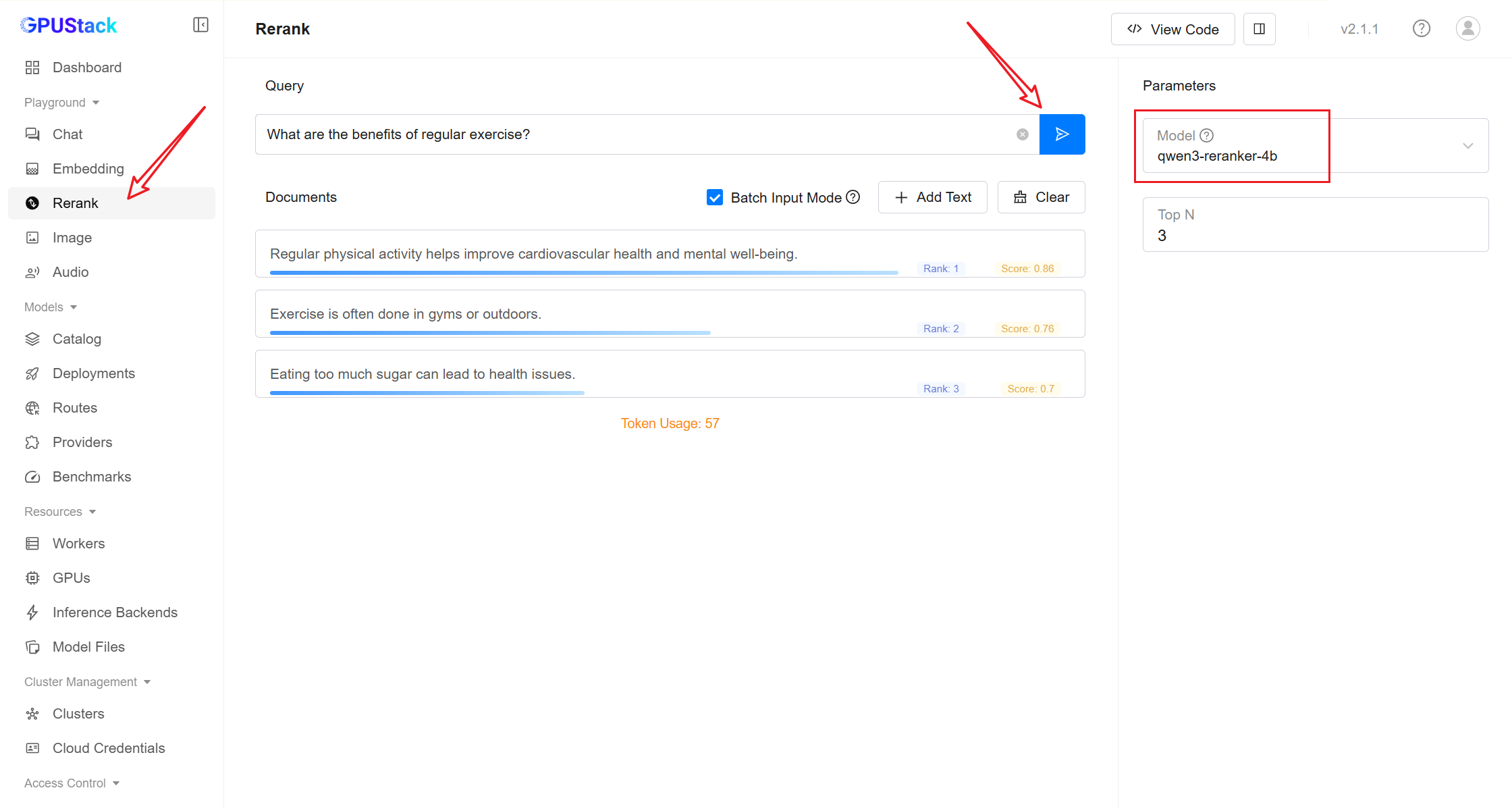
- After deployment, you can test the model in Playground.
Obtain Model Access Information
-
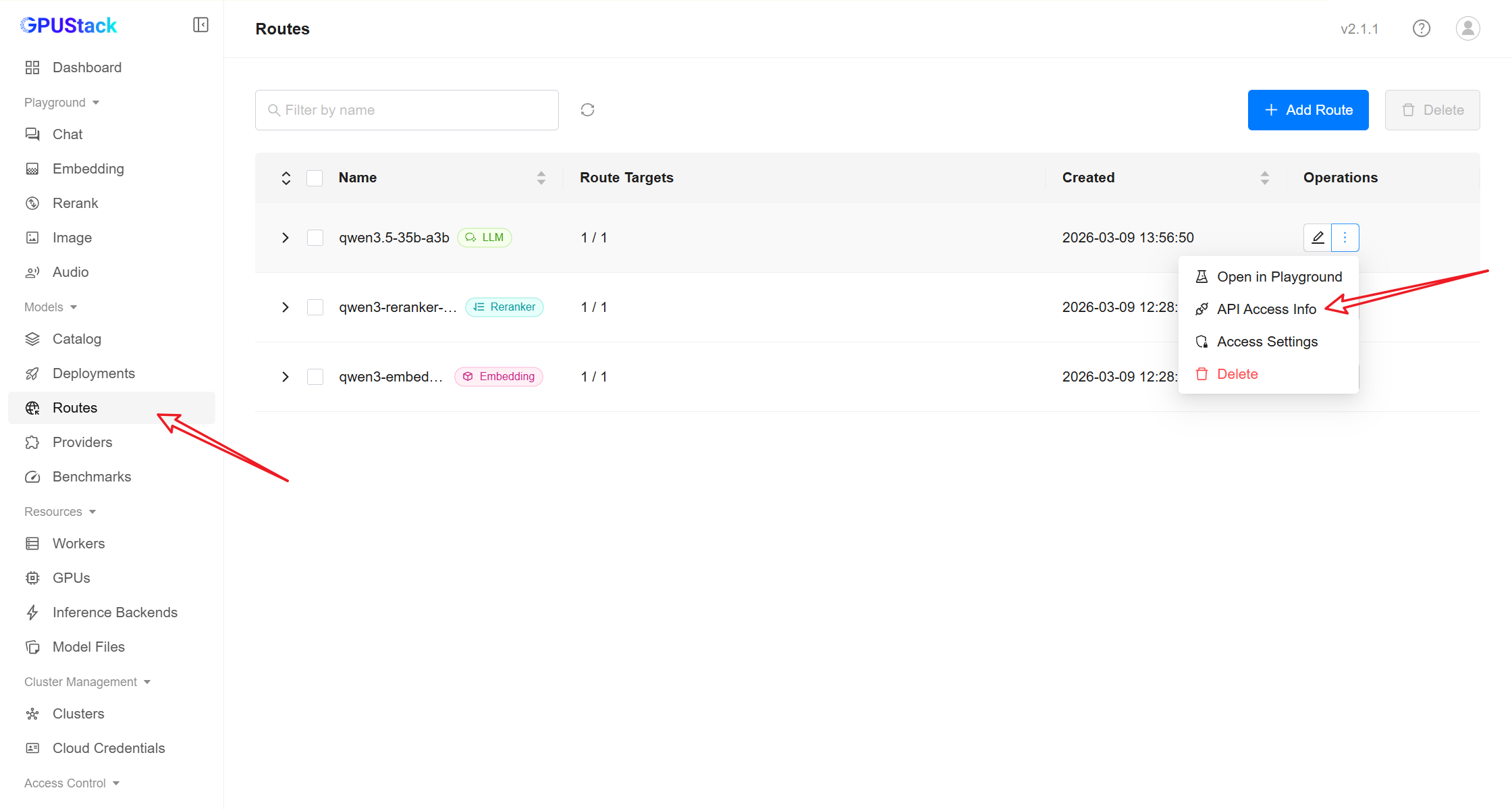
In the GPUStack sidebar, open the Routes page.
-
Click the More actions menu next to the route and select API Access Info.
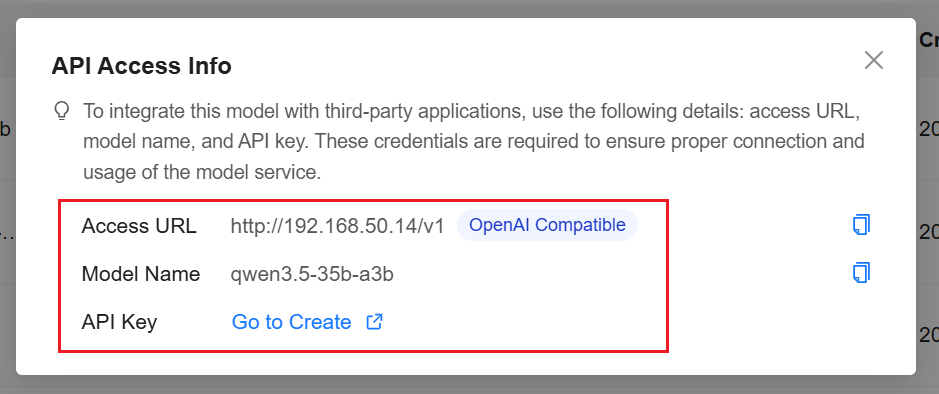
Record the following information:
Example:
Note
You can create an API Key following the instructions in the UI.
Deploy MaxKB
MaxKB can be deployed using Docker:
Default credentials:
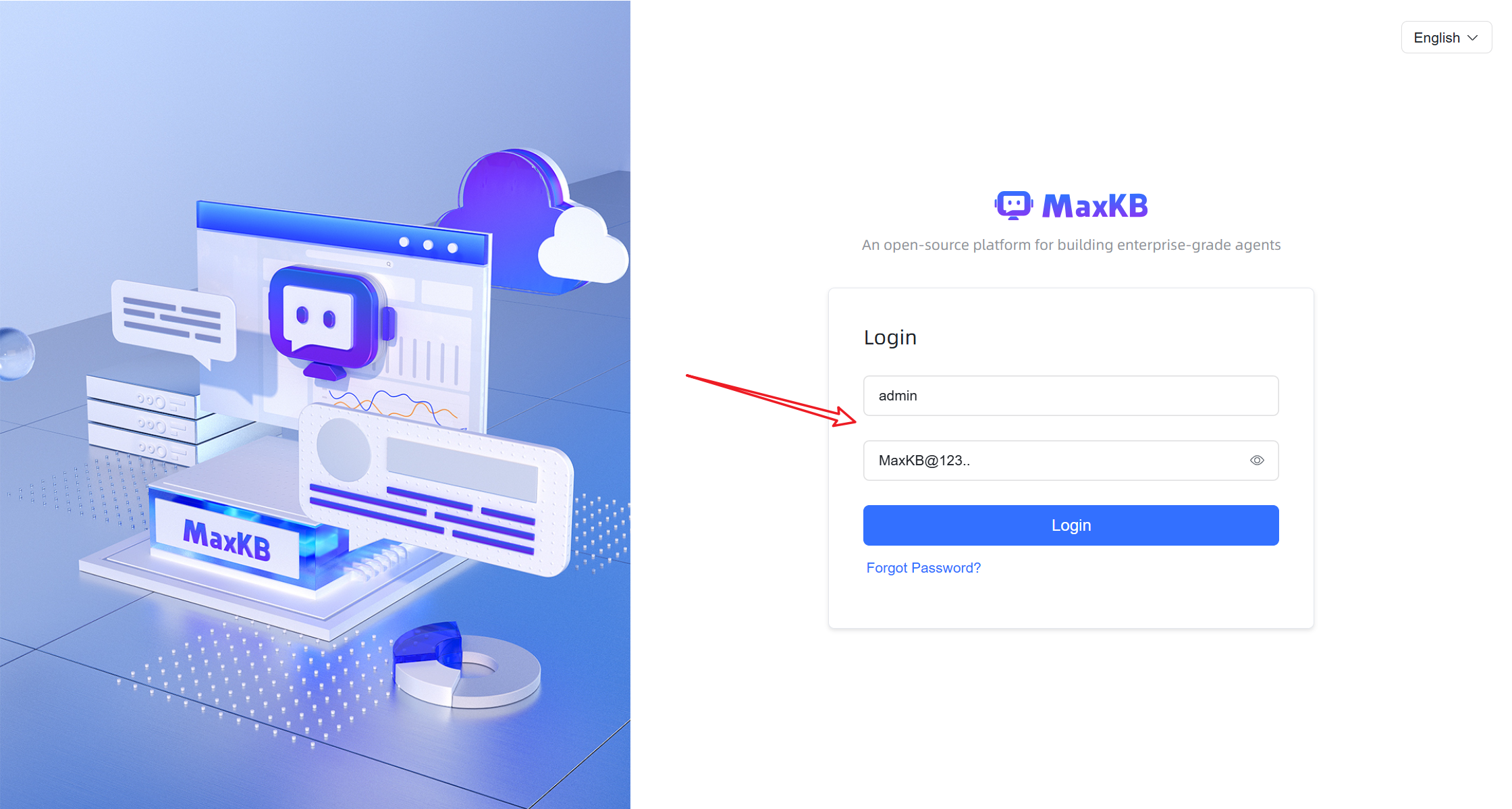
After logging in for the first time, follow the prompt to change the password.
Integrating GPUStack into MaxKB
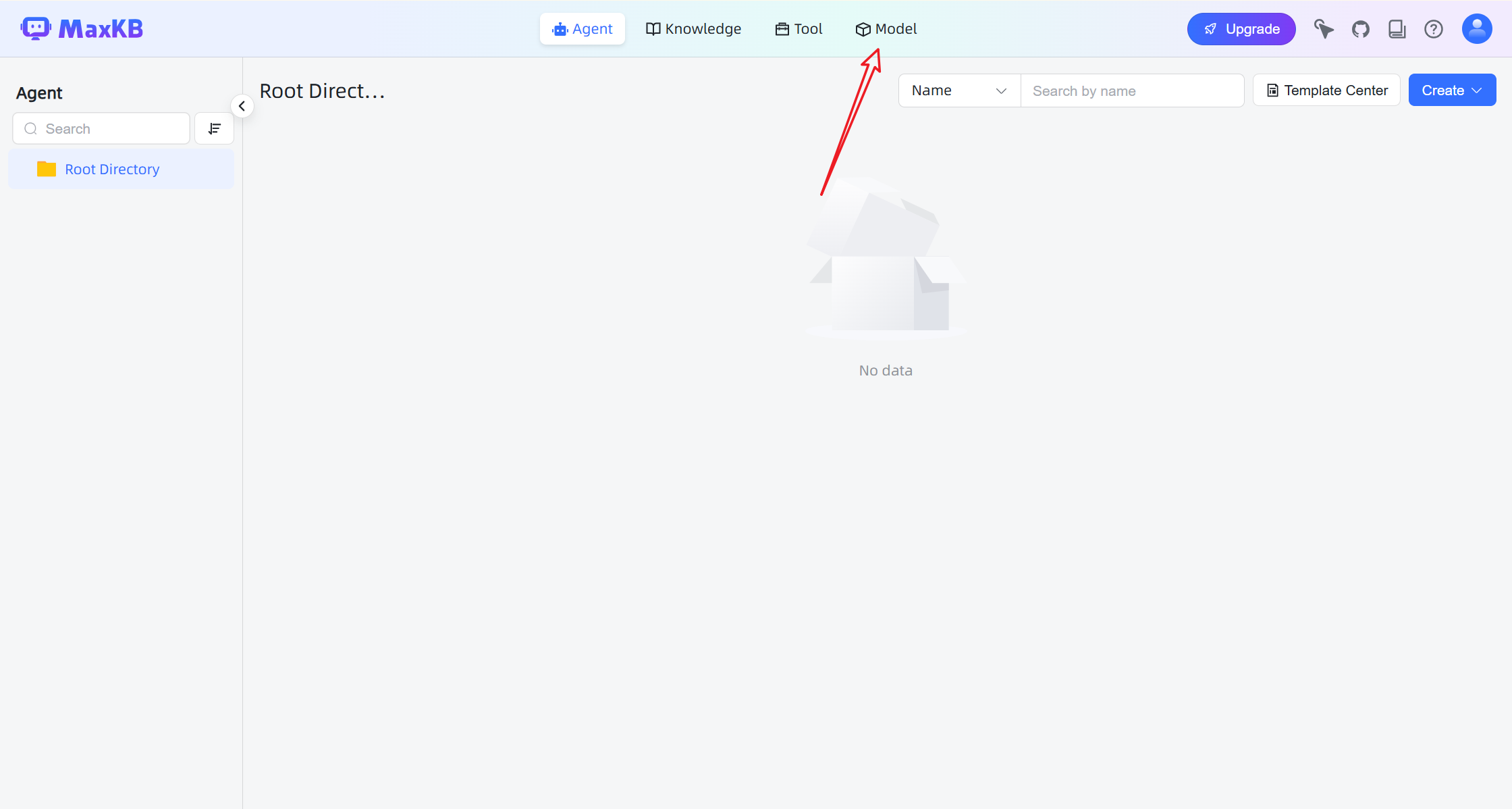
- In the MaxKB UI, navigate to Model in the top navigation bar.
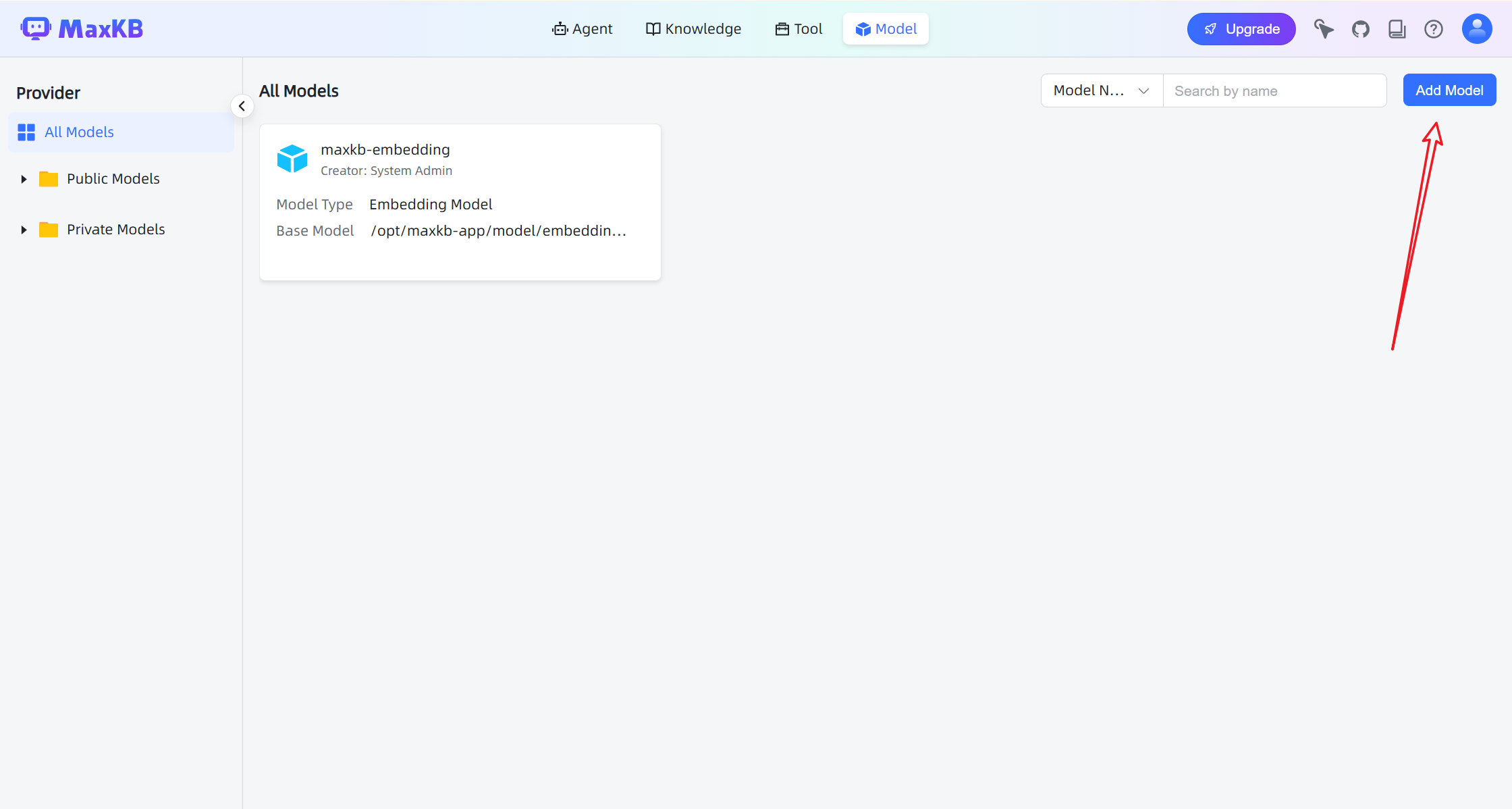
- Click Add Model and configure the model.
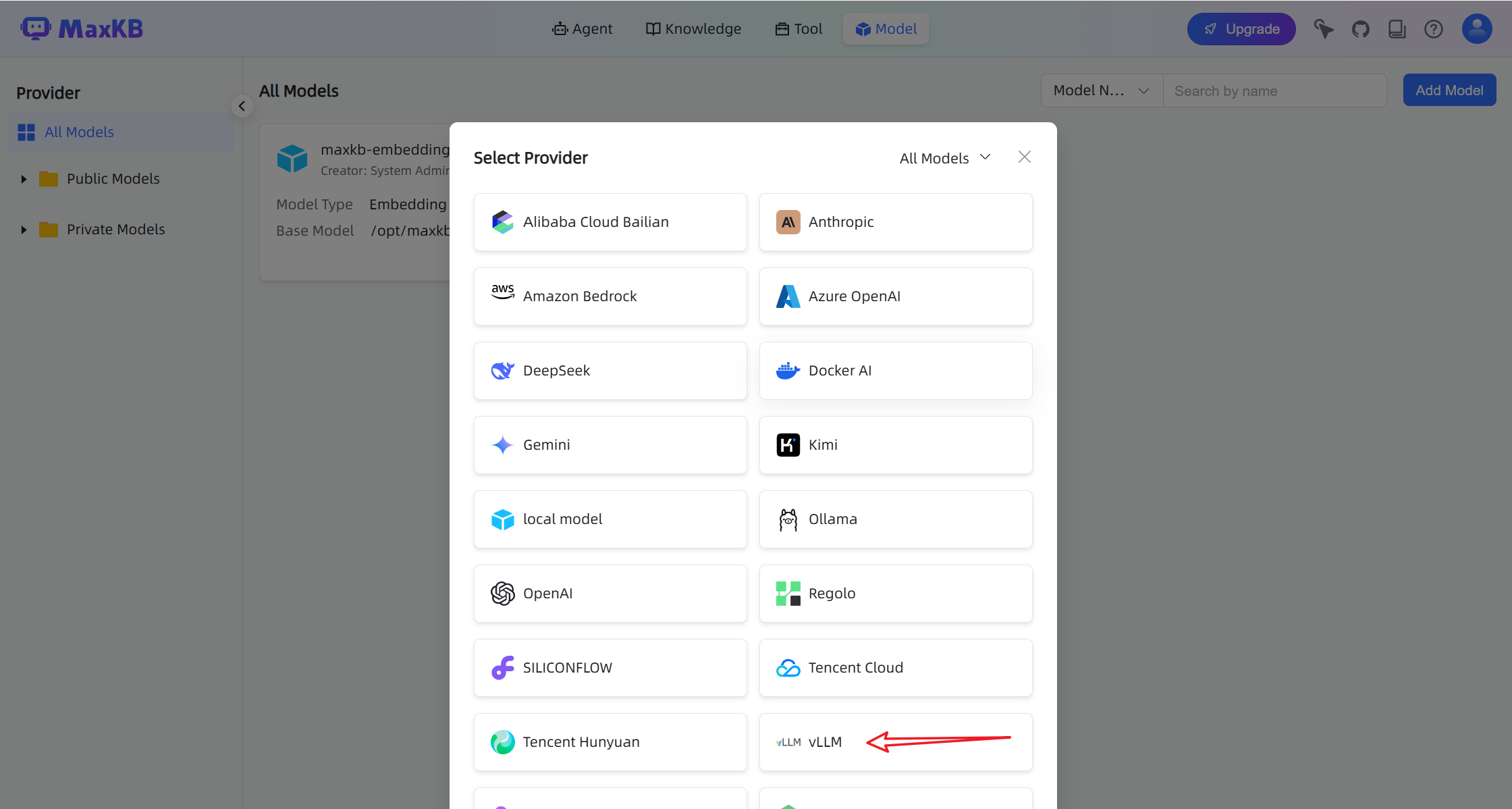
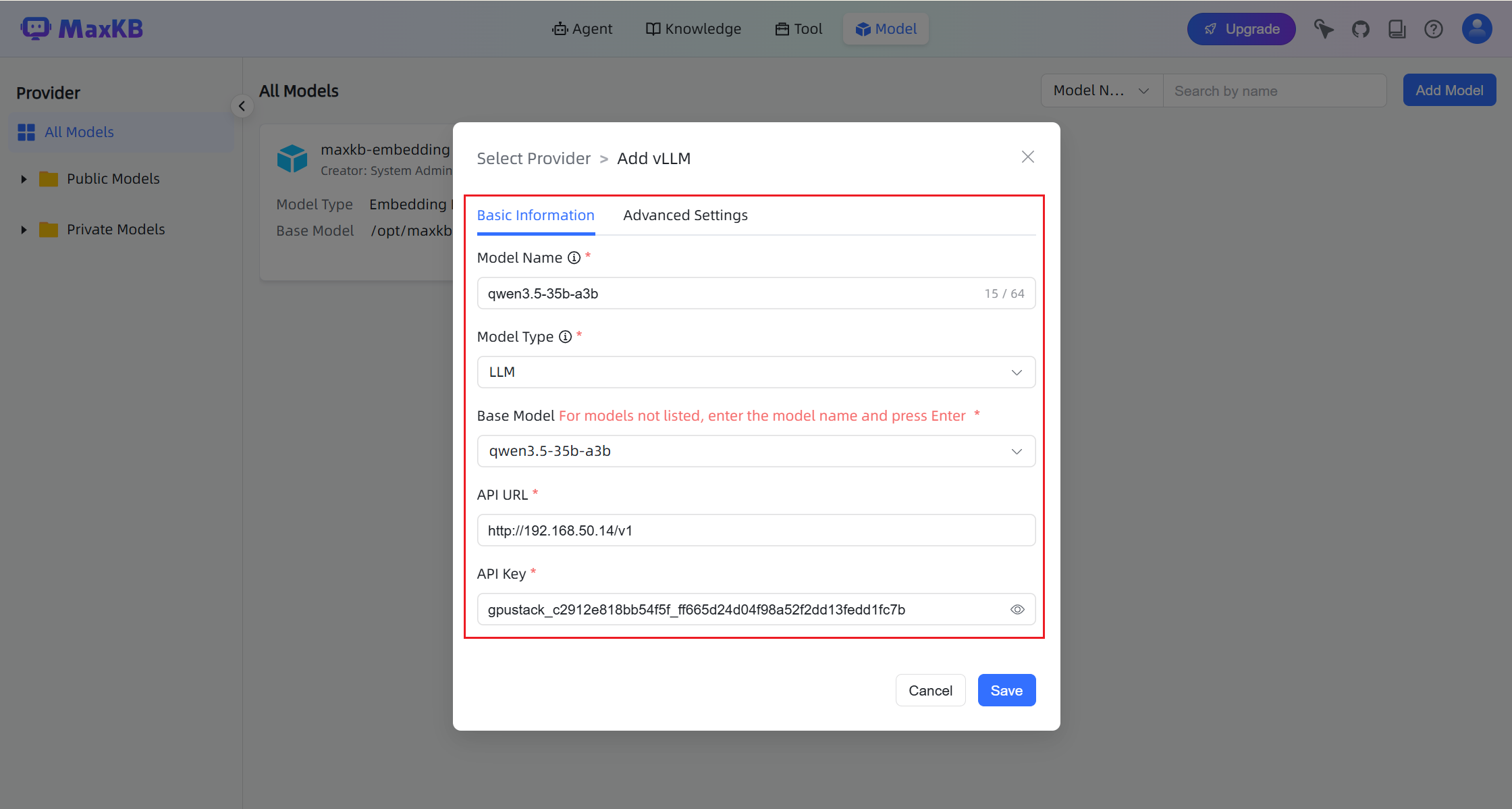
When configuring the model:
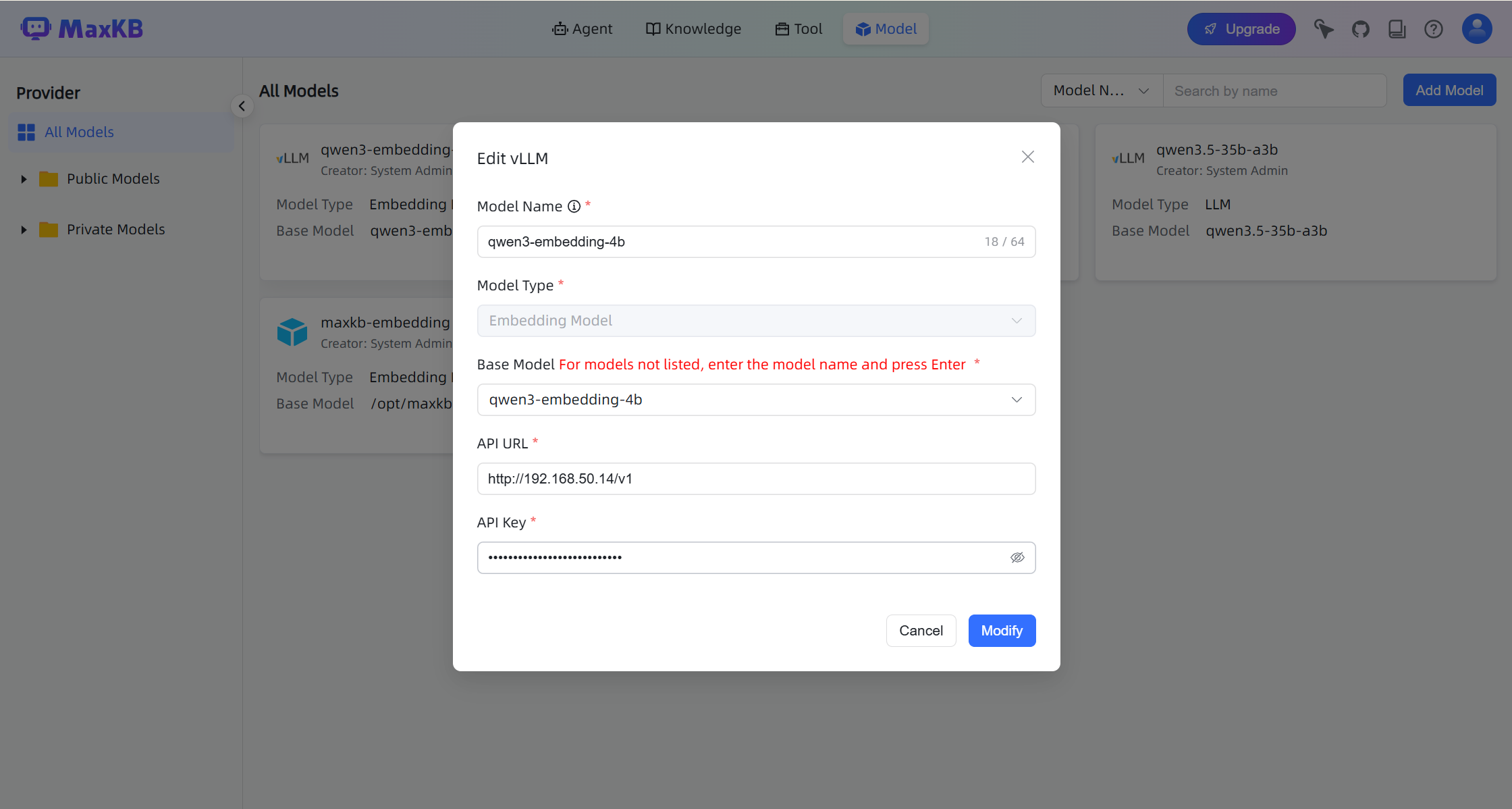
- Base Model: Must match the model name deployed in GPUStack.
- API URL:
http://your-gpustack-url/v1 - API Key: The API key created in GPUStack.
Note
API URL and API Key fields will appear after entering the Base Model and pressing Enter.
- Add the embedding and reranking models using the same method:
qwen3-embedding-4b
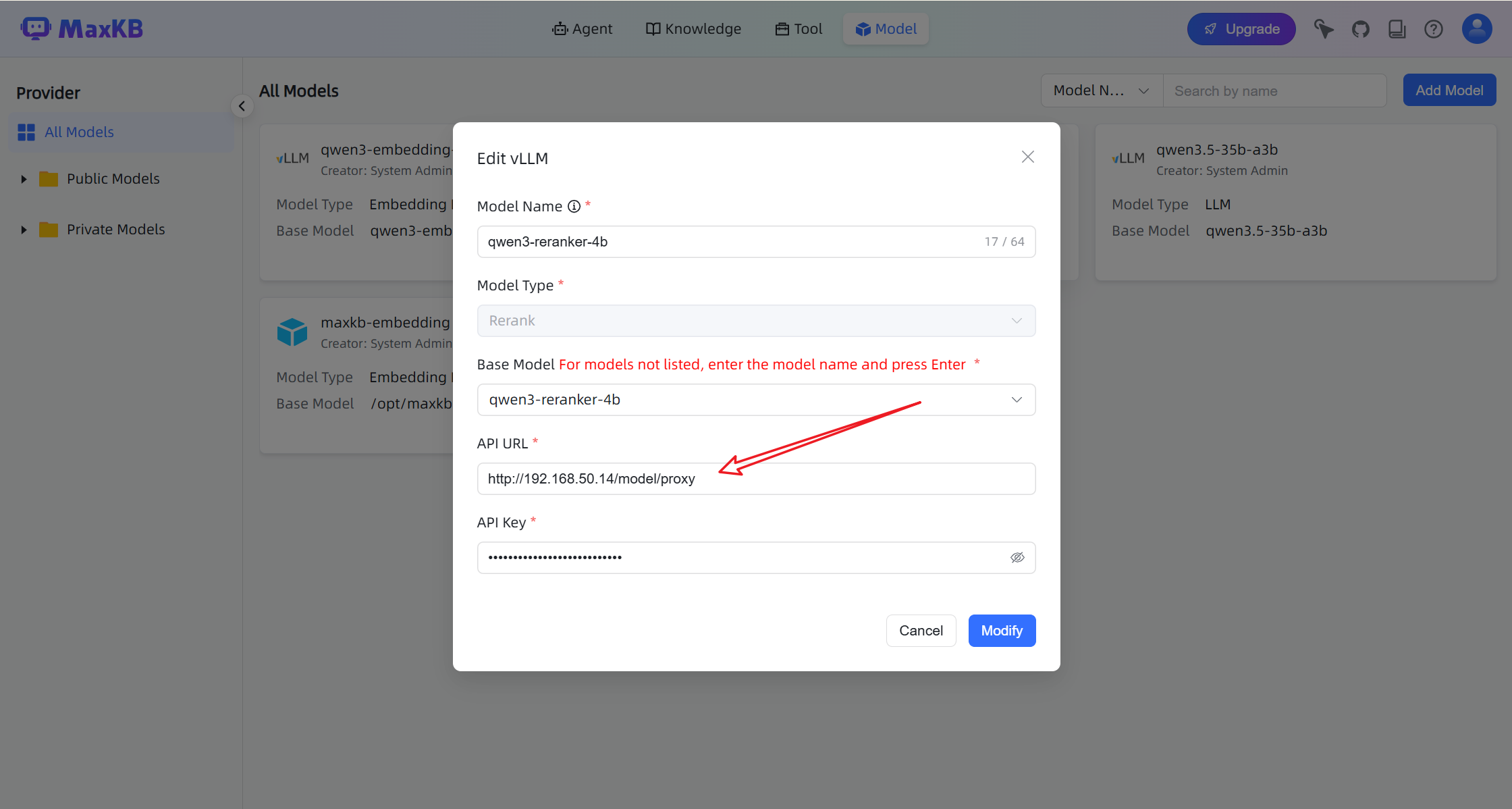
qwen3-reranker-4b
For qwen3-reranker-4b, enable Generic Proxy.
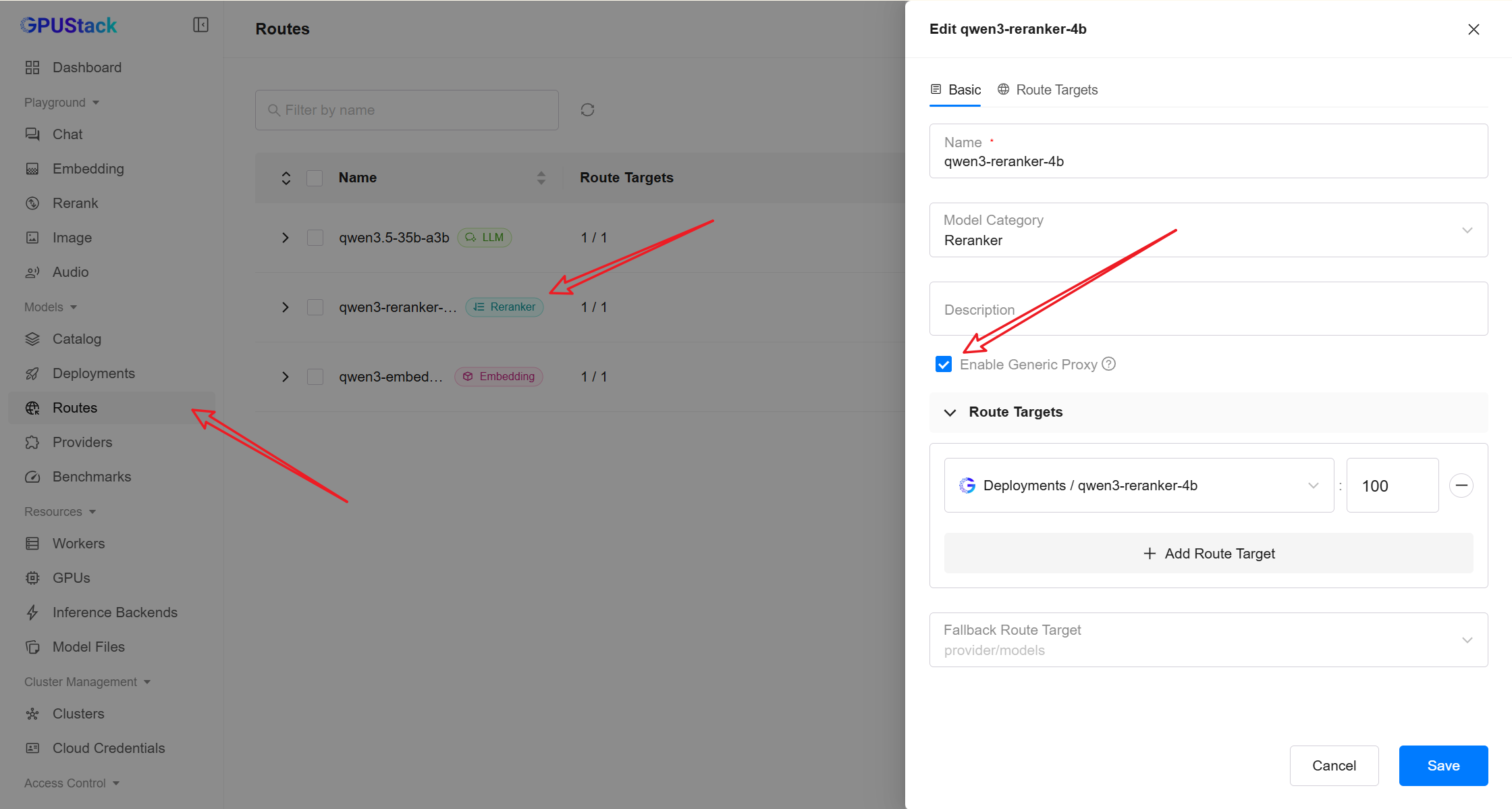
This is required because MaxKB uses the following endpoint:
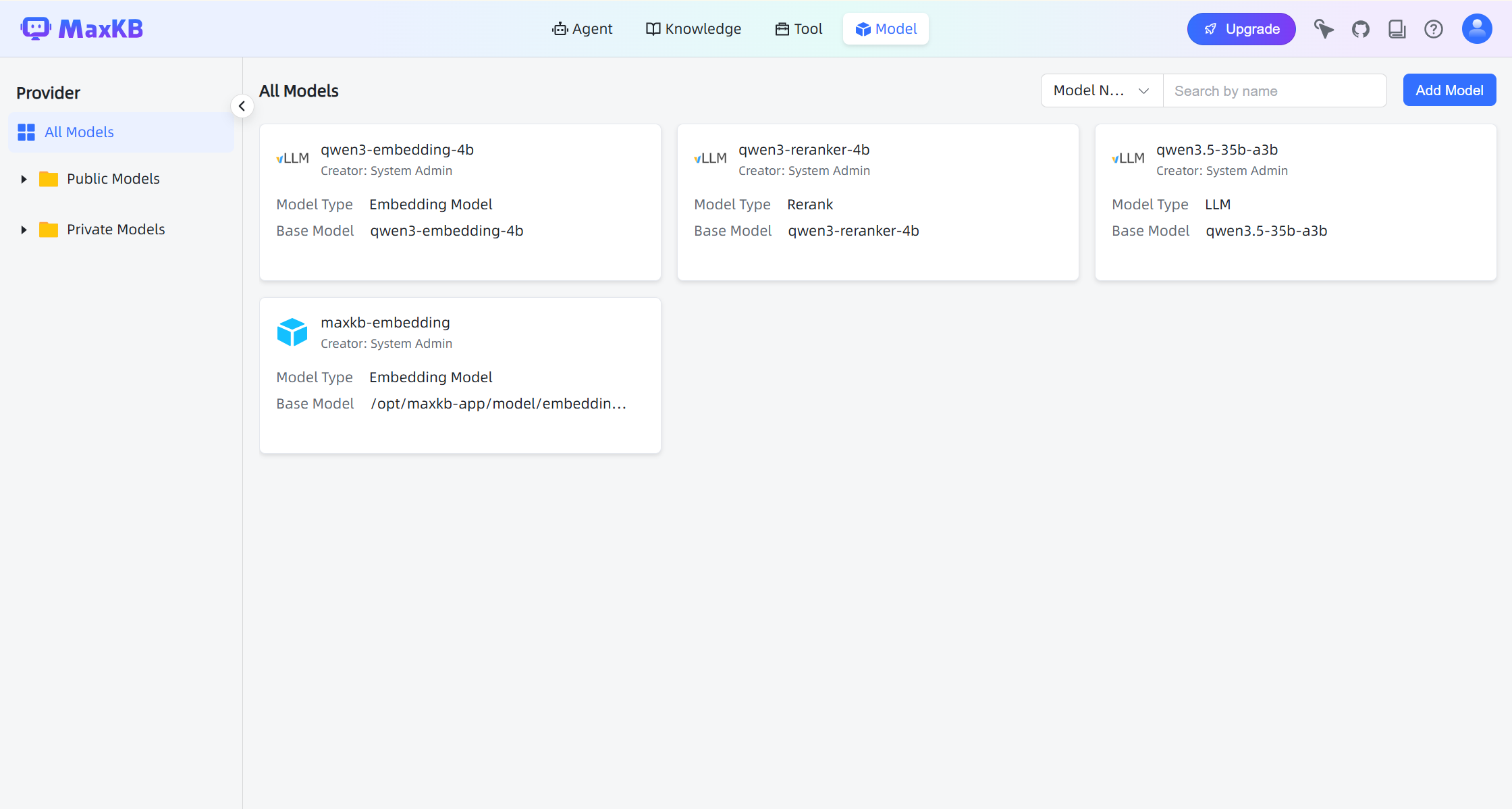
After configuration, the models should appear in the model list.
Create a Knowledge Base
-
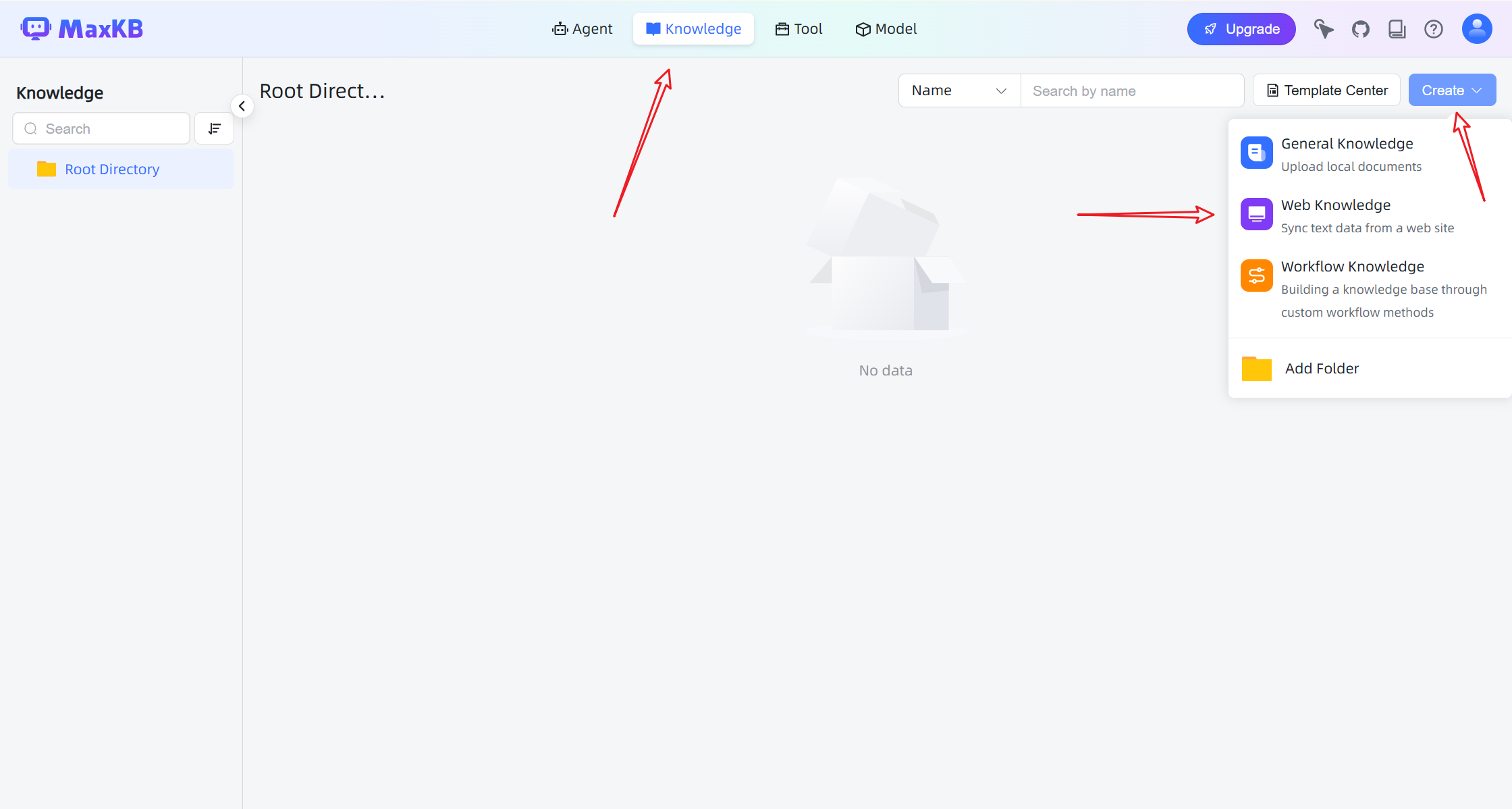
Navigate to the Knowledge page.
-
Click Create and select Web Knowledge.
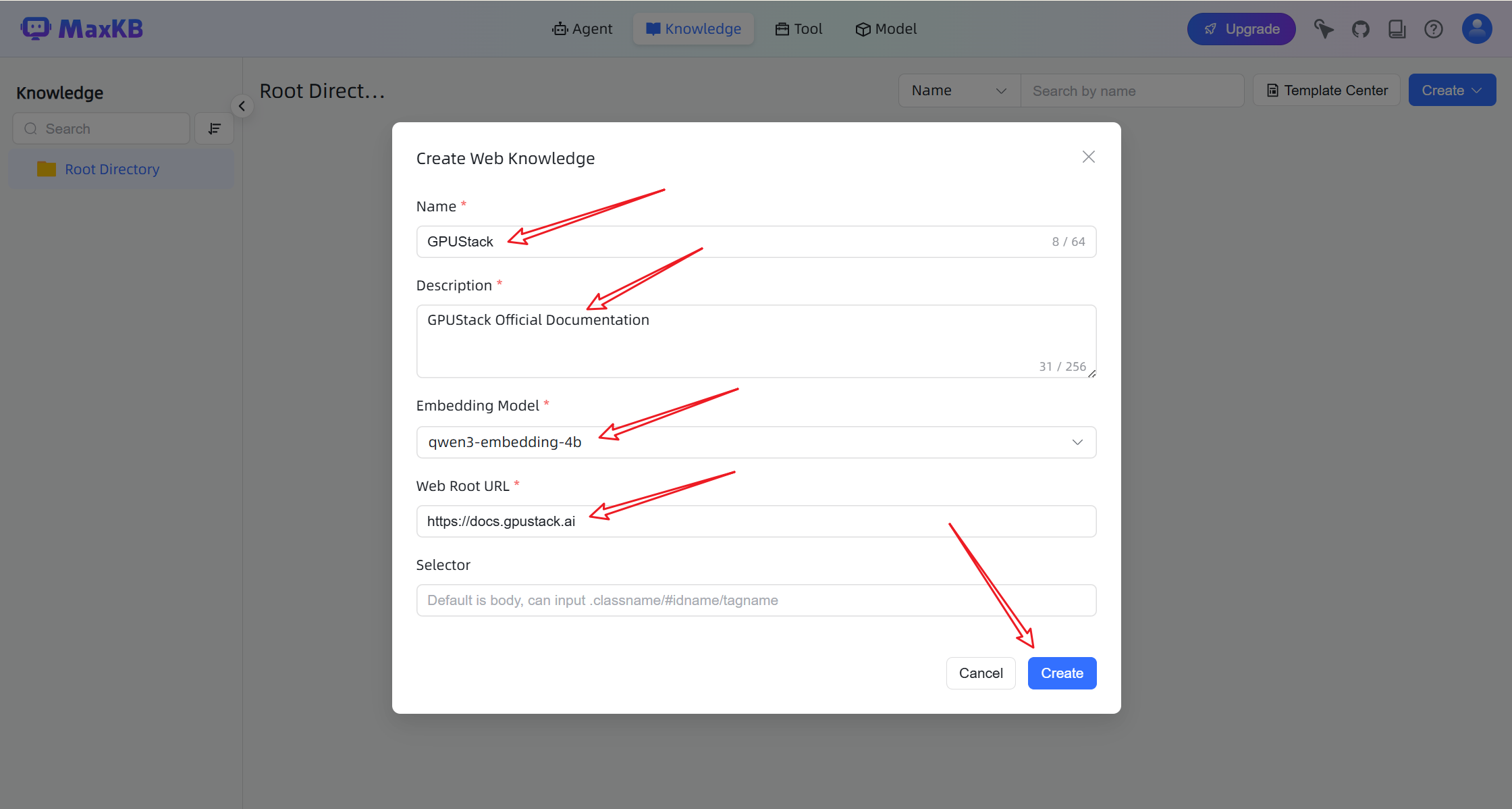
- Enter a documentation URL or other data source. MaxKB will automatically crawl and parse the content.
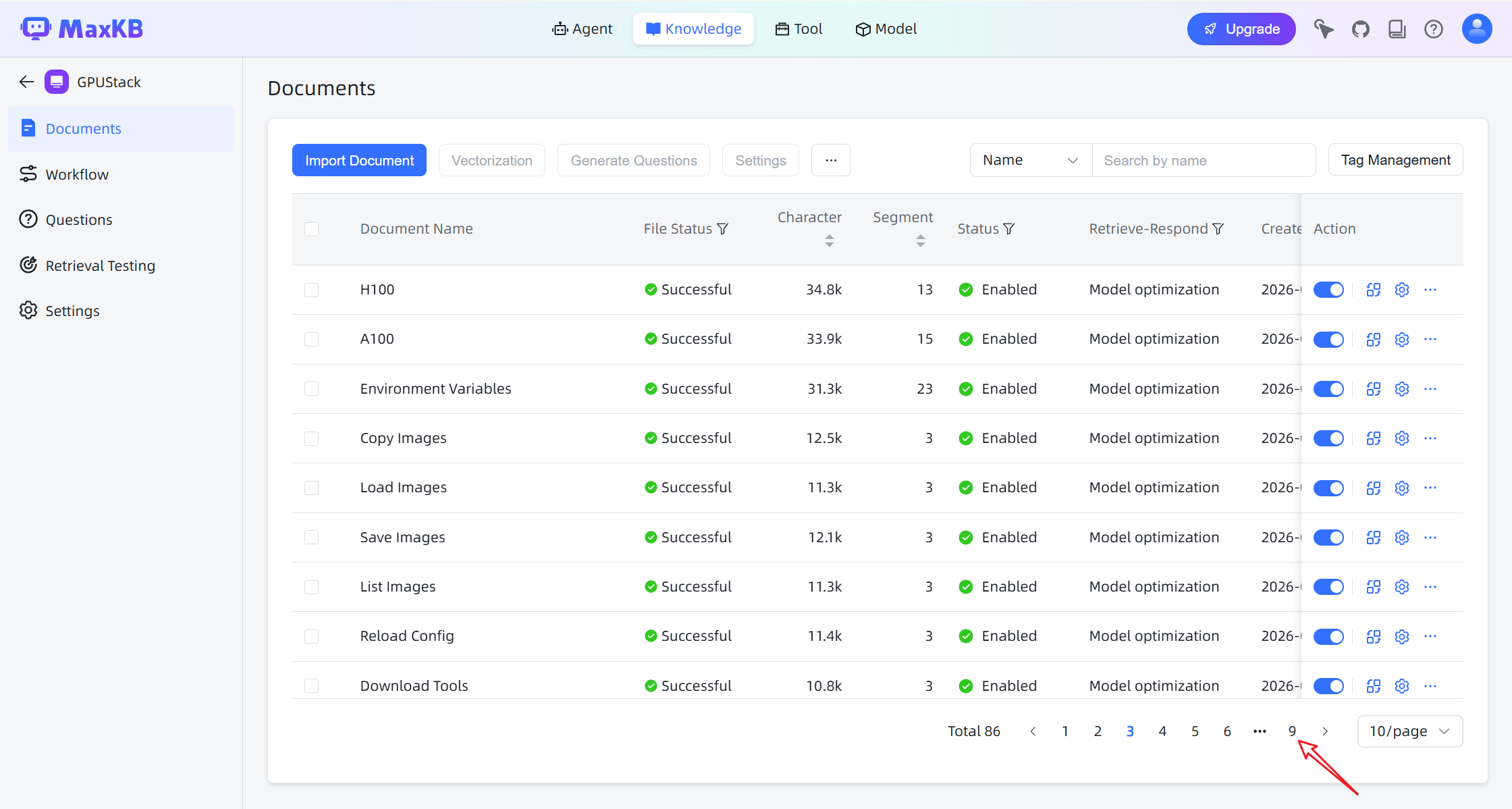
After the crawl is completed:
Create an AI Agent
-
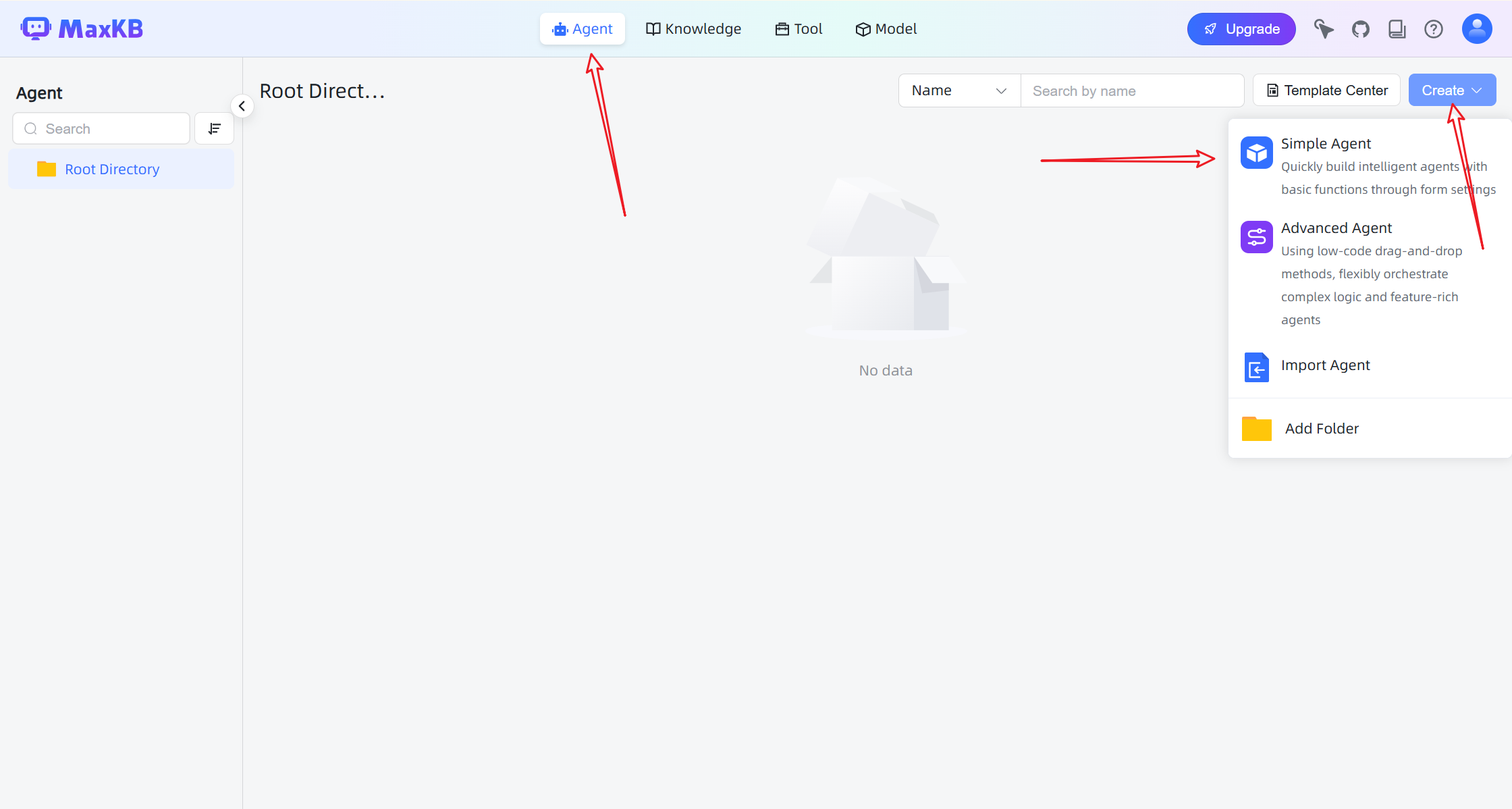
Go to the Agent page.
-
Click Create to create a new agent.
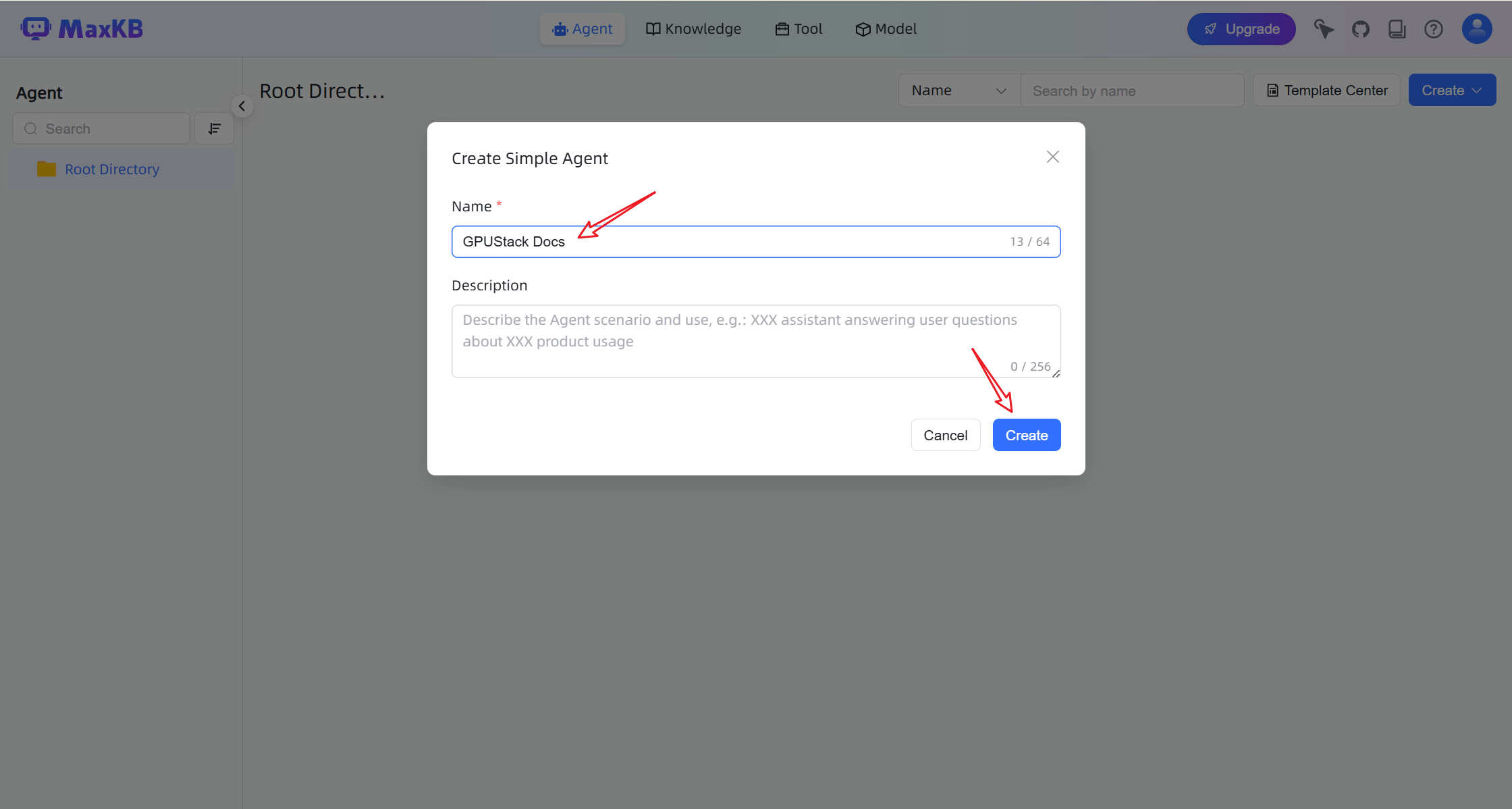
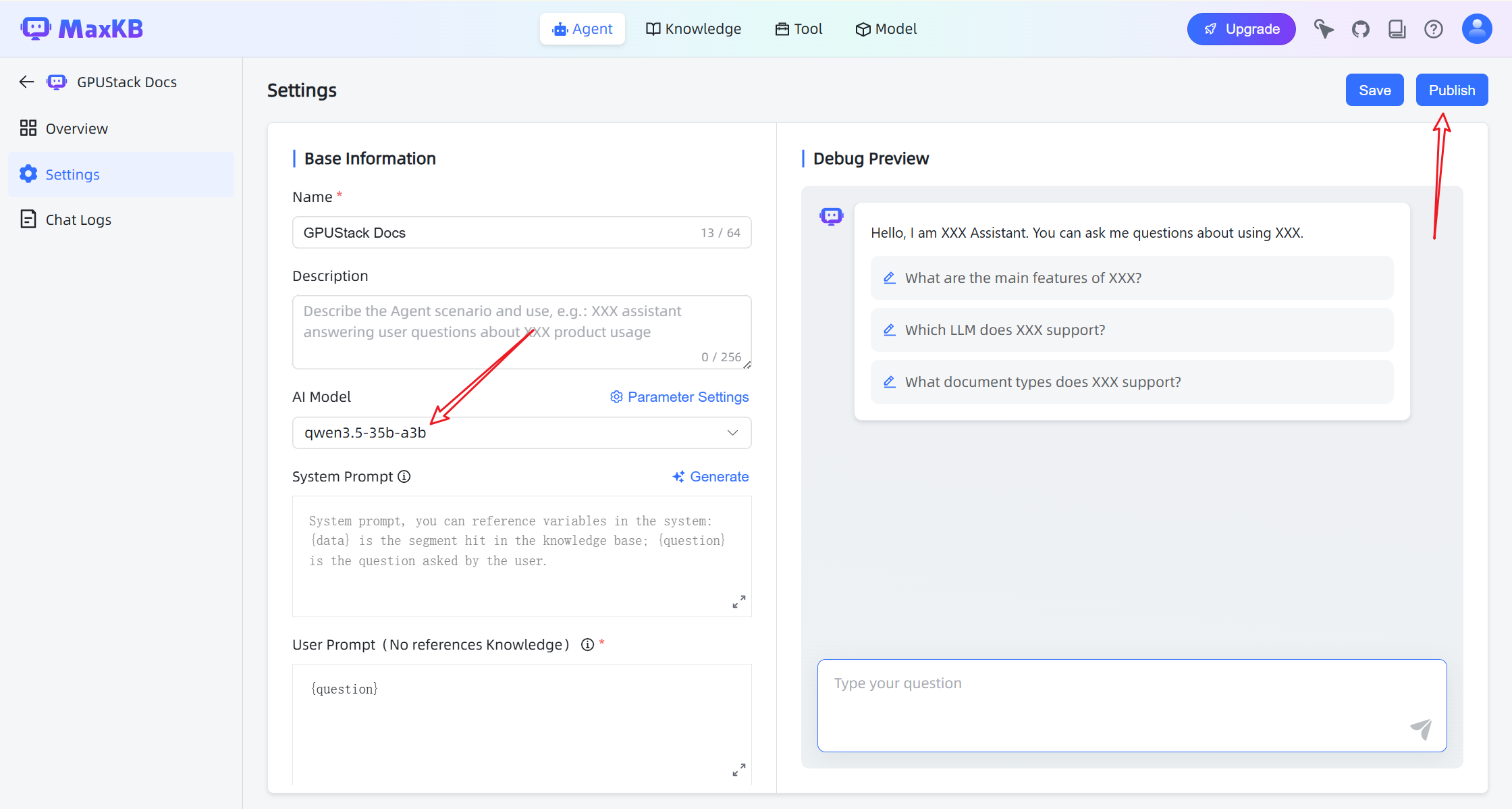
- Configure the agent with:
- Chat model
- Knowledge base
- Retrieval settings
- Click Publish to activate the agent.
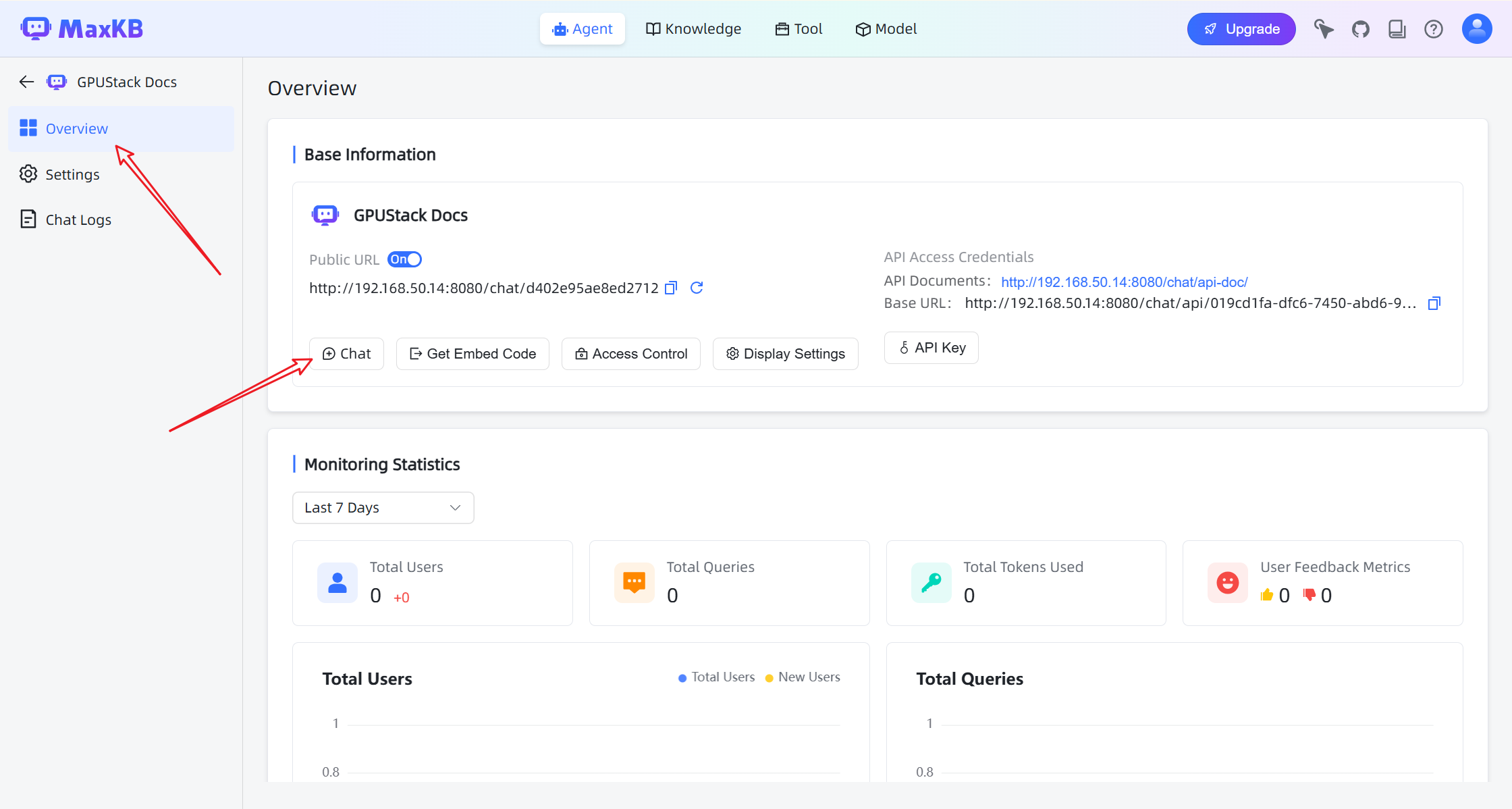
Chat with the Knowledge Base
Open the chat interface to start interacting with the assistant.
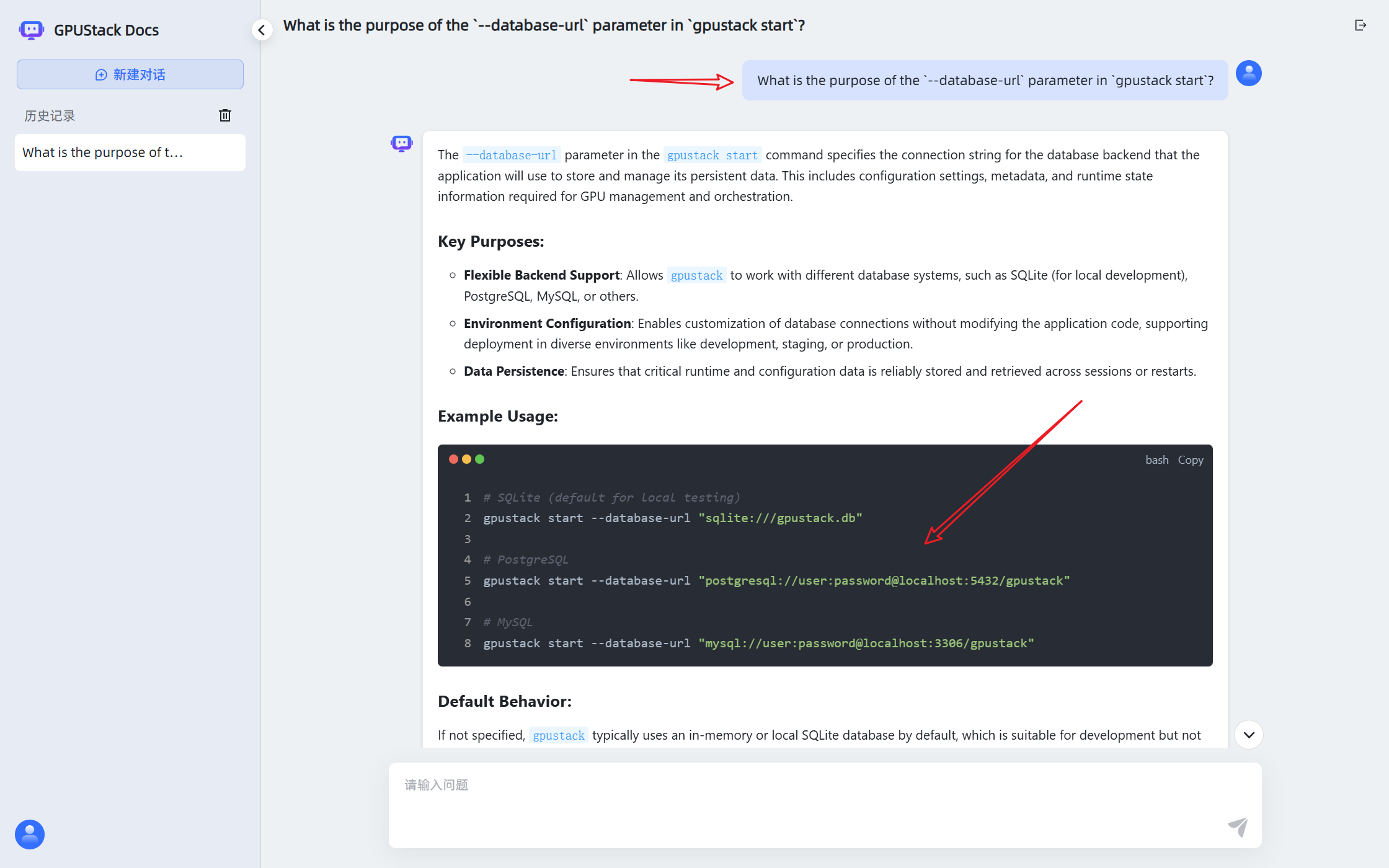
The assistant can now answer questions based on the connected knowledge base and models deployed on GPUStack.